> ## Documentation Index
> Fetch the complete documentation index at: https://docs.figr.design/llms.txt
> Use this file to discover all available pages before exploring further.
# Item Actions
> Quick actions for any item you select on the Canvas, plus deeper actions in full screen.
When you select an item on the Canvas, Figr shows quick actions for that item. A canvas item can be a generated prototype, UX review, user flow, PRD, screenshot, reference, sticky note, or any other artifact on the Canvas. For prototypes, the quick actions can include **Interact** and **Full screen**. Interact lets you click through the prototype directly on the Canvas; Full screen opens it in a focused view for closer review.\\
-3.png?fit=max&auto=format&n=z16Z7ZdXfoZy_c4N&q=85&s=9b059d32a4735b6e4ff12bc2383e97fa) {/* @aryan full toolbar — actioned: the quick-actions screenshot below shows the full toolbar plus the more-actions menu (Duplicate, Bring to front, Send to back, Hide, Delete) */}
{/* SCREENSHOT — replace src with /images/canvas/04-02-item-actions-quick-actions.png once captured */}
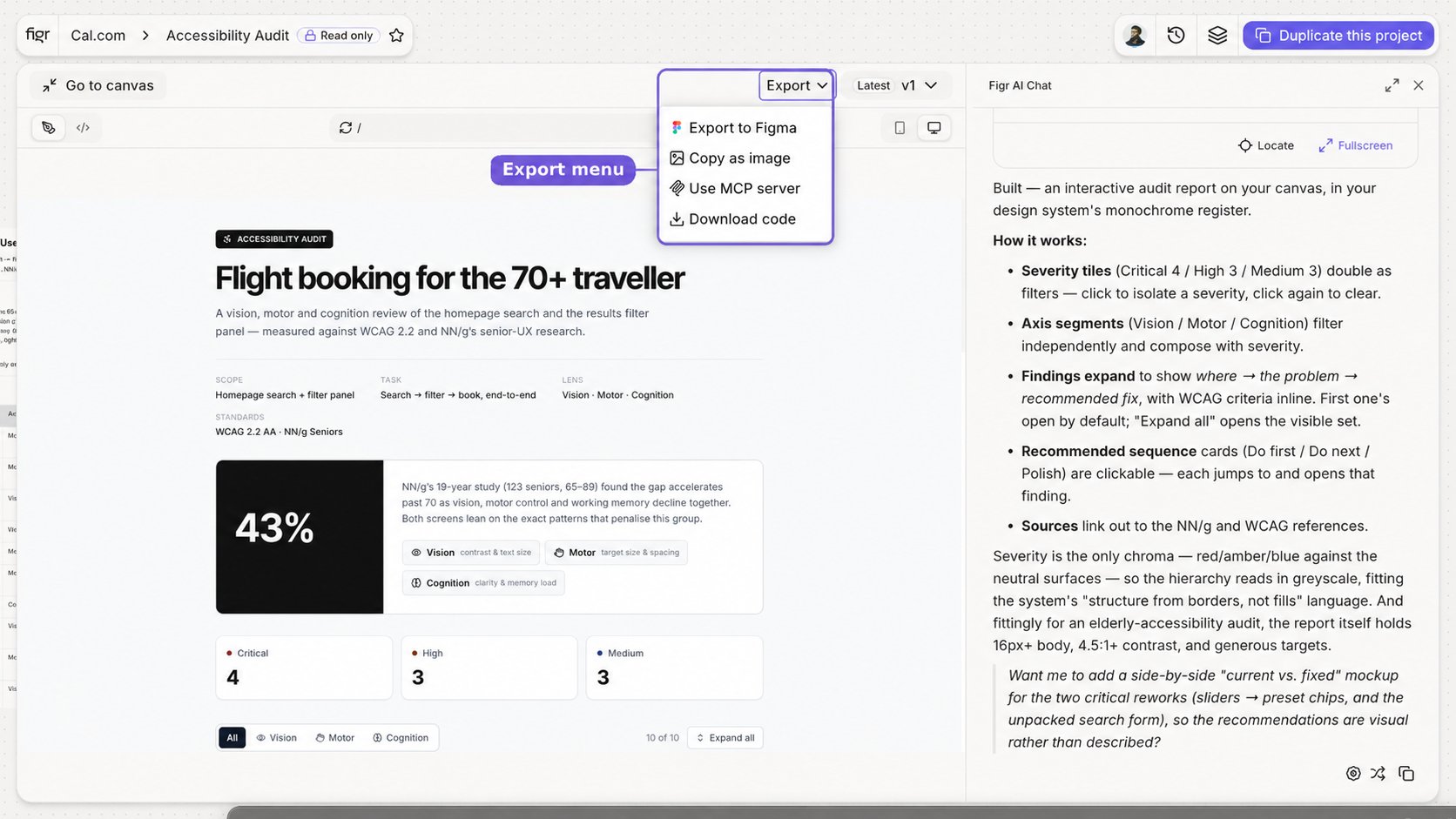
In full screen, you can reach deeper actions: export the design, copy it as an image, use the MCP server, download code, switch versions, or return to the Canvas.
## Common actions
Available actions depend on the item type. \
The list below covers prototypes and common artifacts.
| Action | What it does | Where |
| -------------------- | ------------------------------------------- | ------------- |
| Interact | Click through a prototype on the Canvas | Selected item |
| Full screen | Open a focused review view | Selected item |
| Duplicate | Copy the item on the Canvas | Selected item |
| Delete | Remove the item from the Canvas | Selected item |
| Return to Canvas | Go back from full screen | Full screen |
| Export to Figma | Send the design to Figma as editable output | Full screen |
| Copy as image | Copy a rendered snapshot to your clipboard | Full screen |
| Use MCP server | Give a coding assistant project context | Full screen |
| Download code | Download the item's front-end output | Full screen |
| Switch versions | Move between earlier and later outputs | Full screen |
| Preview device sizes | Check the output at different screen sizes | Full screen |
{/* @aryan add duplicate, delete to above table — actioned: added Duplicate and Delete rows */}
This makes the Canvas a working surface, not a static board. Select an output, inspect it, interact with it, export it, or move it forward without leaving the project.
{/* SCREENSHOT — replace src with /images/canvas/04-02-item-actions-full-screen.png once captured */}
{/* @aryan full toolbar — actioned: the quick-actions screenshot below shows the full toolbar plus the more-actions menu (Duplicate, Bring to front, Send to back, Hide, Delete) */}
{/* SCREENSHOT — replace src with /images/canvas/04-02-item-actions-quick-actions.png once captured */}
In full screen, you can reach deeper actions: export the design, copy it as an image, use the MCP server, download code, switch versions, or return to the Canvas.
## Common actions
Available actions depend on the item type. \
The list below covers prototypes and common artifacts.
| Action | What it does | Where |
| -------------------- | ------------------------------------------- | ------------- |
| Interact | Click through a prototype on the Canvas | Selected item |
| Full screen | Open a focused review view | Selected item |
| Duplicate | Copy the item on the Canvas | Selected item |
| Delete | Remove the item from the Canvas | Selected item |
| Return to Canvas | Go back from full screen | Full screen |
| Export to Figma | Send the design to Figma as editable output | Full screen |
| Copy as image | Copy a rendered snapshot to your clipboard | Full screen |
| Use MCP server | Give a coding assistant project context | Full screen |
| Download code | Download the item's front-end output | Full screen |
| Switch versions | Move between earlier and later outputs | Full screen |
| Preview device sizes | Check the output at different screen sizes | Full screen |
{/* @aryan add duplicate, delete to above table — actioned: added Duplicate and Delete rows */}
This makes the Canvas a working surface, not a static board. Select an output, inspect it, interact with it, export it, or move it forward without leaving the project.
{/* SCREENSHOT — replace src with /images/canvas/04-02-item-actions-full-screen.png once captured */}
 ## Related
Continue a generated design in your team's Figma workflow.
Turn an artifact into a public page or share the full project.
Let AI coding assistants read project context.
How the visual workspace fits together.
## Related
Continue a generated design in your team's Figma workflow.
Turn an artifact into a public page or share the full project.
Let AI coding assistants read project context.
How the visual workspace fits together.