> ## Documentation Index
> Fetch the complete documentation index at: https://docs.figr.design/llms.txt
> Use this file to discover all available pages before exploring further.
# History and Layers
> Find, review, or return to anything on the Canvas with version history, Layers, and Activity.
## Version history
Use version history to go back to earlier versions of a generated output. It helps when:
* A new edit changed too much
* You preferred an earlier direction
* You want to compare two versions
* You need to restore a previous output
* You want to see how the design evolved For example, you generate a dashboard, then ask Figr to make it more compact. If the new version feels worse, open version history and return to the earlier one.
## Layers
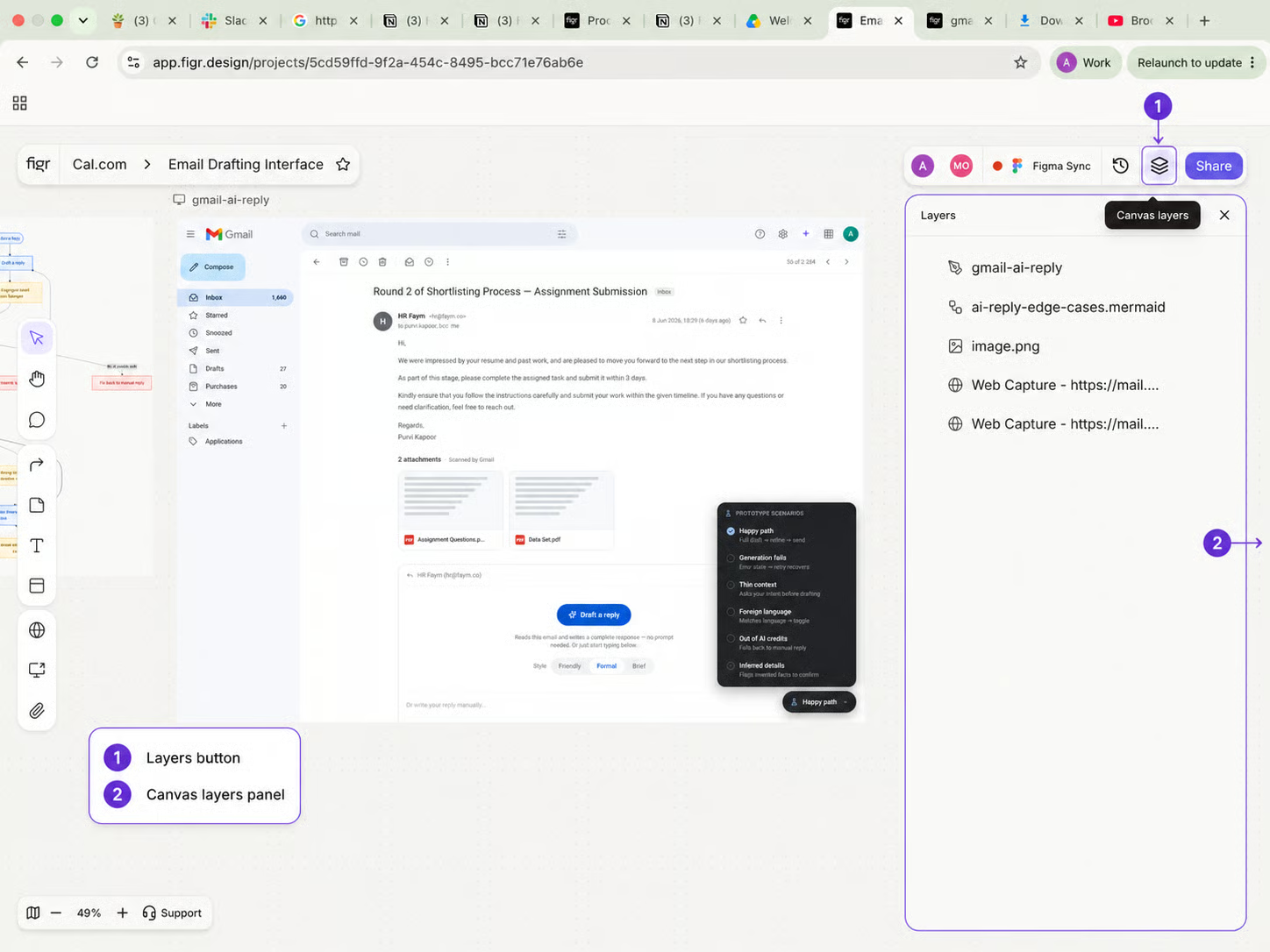
Use Layers to see what exists on the Canvas. This helps when your Canvas has many prototypes, notes, screenshots, flows, and sections. Use Layers to find a specific item, understand Canvas structure, check what belongs inside a section, and navigate a crowded Canvas faster.
 ## Activity
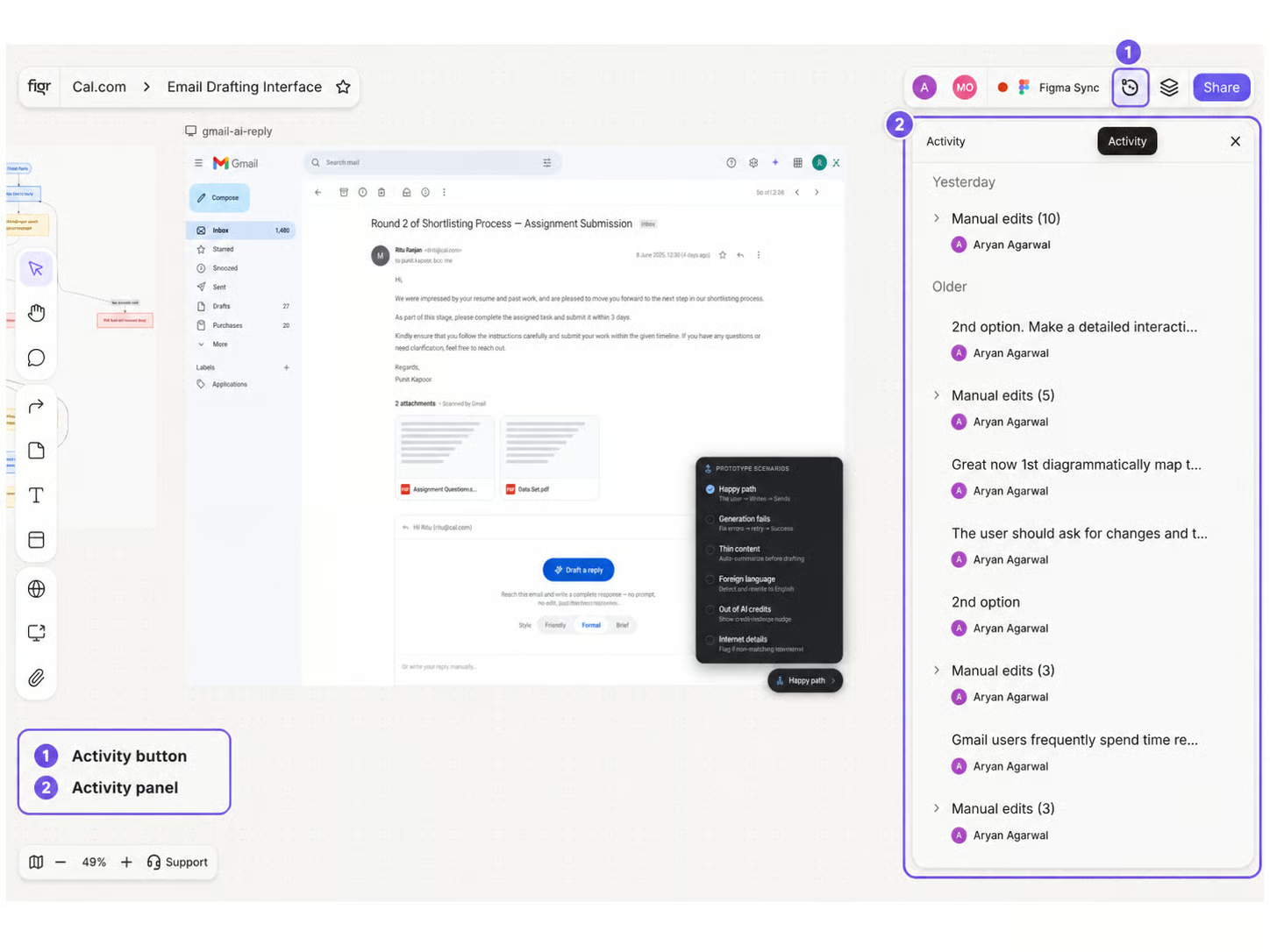
Revert to a previous version Use Activity to review what changed recently. It helps when you are collaborating with others or returning to a project after some time. Use Activity to check what was added, what was edited, what was moved, who made a change, and when it happened.
{/* SCREENSHOT — replace src with /images/canvas/04-04-history-layers.png once captured */}
## Activity
Revert to a previous version Use Activity to review what changed recently. It helps when you are collaborating with others or returning to a project after some time. Use Activity to check what was added, what was edited, what was moved, who made a change, and when it happened.
{/* SCREENSHOT — replace src with /images/canvas/04-04-history-layers.png once captured */}
 ## Related
What you can do with a selected item.
Sticky notes, comments, and sections.
Refine a part without redoing the whole screen.
## Related
What you can do with a selected item.
Sticky notes, comments, and sections.
Refine a part without redoing the whole screen.