> ## Documentation Index
> Fetch the complete documentation index at: https://docs.figr.design/llms.txt
> Use this file to discover all available pages before exploring further.
# Figr MCP
> Give AI coding assistants the context behind your designs, not just the pixels.
Figr MCP gives AI coding assistants the real design behind your screens: its structure, values, artifacts, and the reasoning that shaped it, not a screenshot. MCP (Model Context Protocol) is an open standard that lets AI tools read external sources. Figr's server exposes your projects and board nodes to any MCP-compatible IDE, so your assistant builds from the actual design instead of a guess at a picture. Use it when you move from design into implementation.
## What you can do
List every design, past conversation, and file in the project.
Open any artifact to see its code and how it was built.
Pull the reasoning behind a design from your conversations with Figr.
Find elements, patterns, or text across all designs at once.
See when something was created or modified, and other file metadata.
## Two ways to connect
* **From a node**: hand one design off to your IDE from the Export menu. Fast, specific.
* **As a connector**: register the Figr MCP server once so any tool reaches your whole workspace. Persistent.
## From a node
Send one design straight from the canvas.
Click the node on the canvas. The floating toolbar appears.
A dialog opens with integration options for VS Code and Cursor, plus two copy buttons.
Project link for the whole project, or Board node link for this one design.
Your assistant can now read the design's real layout, structure, and values.
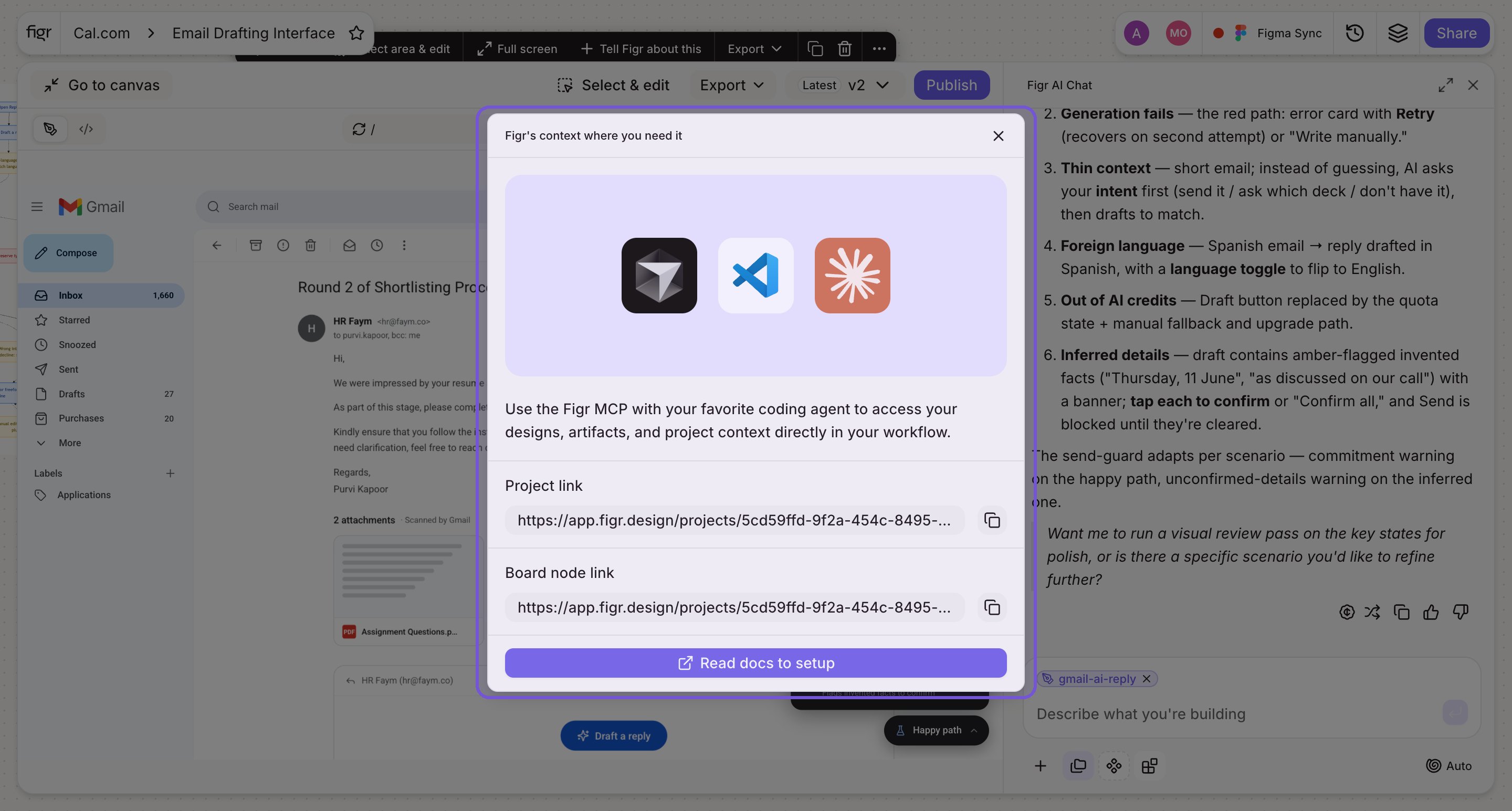
 | Link | Scope | Use when |
| --------------- | ------------------ | --------------------------------------------------------- |
| Project link | The entire project | The assistant should see every screen and how they relate |
| Board node link | One specific node | You are implementing a single screen or component |
## As a connector
Register the Figr MCP server once so any project is reachable, instead of copying a link per node. The server URL is the same for everyone: `https://mcp.figr.design/mcp`.
### Through a connectors page
Name it (for example, Figr mcp) and use `https://mcp.figr.design/mcp`.
Complete the OAuth consent to grant workspace and project read access.
Your tools can now reach Figr live. Share a project or node link in your assistant to focus it.
### Through your editor's config
Some editors register the server through a config file instead of a connectors page.
1. Open **Cursor → Settings → Cursor Settings**.
2. Click **Tools & Integrations**.
3. Under **MCP Tools**, click **+** to add a custom MCP server.
4. Paste this into `mcp.json` and save.
```json theme={null}
{
"mcpServers": {
"figr": {
"type": "http",
"url": "https://mcp.figr.design/mcp"
}
}
}
```
Open your terminal and run:
```bash theme={null}
claude mcp add figr --transport http https://mcp.figr.design/mcp
```
1. Open the MCP store via the **...** dropdown at the top of the agent panel.
2. Click **Manage MCP Servers**, then **View raw config**.
3. Add the Figr server to `mcp_config.json`.
```json theme={null}
{
"mcpServers": {
"figr": {
"command": "npx",
"args": ["-y", "mcp-remote", "https://mcp.figr.design/mcp"],
"env": {}
}
}
}
```
Any editor with HTTP (StreamableHTTP) transport can connect. Confirm HTTP support in your editor's docs, then add the server manually:
```json theme={null}
{
"mcpServers": {
"figr": {
"type": "http",
"url": "https://mcp.figr.design/mcp"
}
}
}
```
## Supported clients
| Client | Supported |
| :----------------- | :-------: |
| Android Studio | ✓ |
| Claude Code | ✓ |
| Codex by OpenAI | ✓ |
| Cursor | ✓ |
| Google Antigravity | ✓ |
| Kiro | ✓ |
| Replit | ✓ |
| VS Code | ✓ |
| Warp | ✓ |
## Why it matters
Handing a design to a developer usually means lossy translation: a screenshot, a spec doc, a guess at spacing. MCP removes that gap.
| Without MCP | With the Figr MCP server |
| --------------------------------------------- | ------------------------------------------- |
| Screenshot the design, describe it to your AI | The IDE reads the real design directly |
| The assistant guesses layout and spacing | The assistant builds from actual structure |
| Re-explain context every session | The project stays connected as live context |
| Manual copy-paste between tools | One link, persistent access |
## Best practices
* Use a Board node link for focused work. Pointing the assistant at one screen keeps its context tight and its output accurate.
* Use a Project link for broader builds, when the assistant needs to see how screens relate.
* Register the connector once if you work in your IDE daily, instead of copying a node link each time.
* Review the OAuth scopes before authorizing, so you know what workspace access you are granting.
## Troubleshooting
| Issue | Fix |
| -------------------------------------------- | --------------------------------------------------------------- |
| IDE can't reach the server | Confirm the URL is exact: `https://mcp.figr.design/mcp` |
| Connector stuck on "Requires authentication" | Click Connect and finish the OAuth consent flow |
| Assistant can't see a design | Check the scope. A Board node link points at one node only |
| Access revoked unexpectedly | Re-run OAuth from the Connectors page to refresh the connection |
{/* ## MCP tools
PLACEHOLDER: the exact MCP tool list must come from the live server manifest or internal spec. Do not document specific tools until confirmed. Owner: Eng.
*/}
## Related
Other ways to hand off a design.
A front-end starting point for implementation.
| Link | Scope | Use when |
| --------------- | ------------------ | --------------------------------------------------------- |
| Project link | The entire project | The assistant should see every screen and how they relate |
| Board node link | One specific node | You are implementing a single screen or component |
## As a connector
Register the Figr MCP server once so any project is reachable, instead of copying a link per node. The server URL is the same for everyone: `https://mcp.figr.design/mcp`.
### Through a connectors page
Name it (for example, Figr mcp) and use `https://mcp.figr.design/mcp`.
Complete the OAuth consent to grant workspace and project read access.
Your tools can now reach Figr live. Share a project or node link in your assistant to focus it.
### Through your editor's config
Some editors register the server through a config file instead of a connectors page.
1. Open **Cursor → Settings → Cursor Settings**.
2. Click **Tools & Integrations**.
3. Under **MCP Tools**, click **+** to add a custom MCP server.
4. Paste this into `mcp.json` and save.
```json theme={null}
{
"mcpServers": {
"figr": {
"type": "http",
"url": "https://mcp.figr.design/mcp"
}
}
}
```
Open your terminal and run:
```bash theme={null}
claude mcp add figr --transport http https://mcp.figr.design/mcp
```
1. Open the MCP store via the **...** dropdown at the top of the agent panel.
2. Click **Manage MCP Servers**, then **View raw config**.
3. Add the Figr server to `mcp_config.json`.
```json theme={null}
{
"mcpServers": {
"figr": {
"command": "npx",
"args": ["-y", "mcp-remote", "https://mcp.figr.design/mcp"],
"env": {}
}
}
}
```
Any editor with HTTP (StreamableHTTP) transport can connect. Confirm HTTP support in your editor's docs, then add the server manually:
```json theme={null}
{
"mcpServers": {
"figr": {
"type": "http",
"url": "https://mcp.figr.design/mcp"
}
}
}
```
## Supported clients
| Client | Supported |
| :----------------- | :-------: |
| Android Studio | ✓ |
| Claude Code | ✓ |
| Codex by OpenAI | ✓ |
| Cursor | ✓ |
| Google Antigravity | ✓ |
| Kiro | ✓ |
| Replit | ✓ |
| VS Code | ✓ |
| Warp | ✓ |
## Why it matters
Handing a design to a developer usually means lossy translation: a screenshot, a spec doc, a guess at spacing. MCP removes that gap.
| Without MCP | With the Figr MCP server |
| --------------------------------------------- | ------------------------------------------- |
| Screenshot the design, describe it to your AI | The IDE reads the real design directly |
| The assistant guesses layout and spacing | The assistant builds from actual structure |
| Re-explain context every session | The project stays connected as live context |
| Manual copy-paste between tools | One link, persistent access |
## Best practices
* Use a Board node link for focused work. Pointing the assistant at one screen keeps its context tight and its output accurate.
* Use a Project link for broader builds, when the assistant needs to see how screens relate.
* Register the connector once if you work in your IDE daily, instead of copying a node link each time.
* Review the OAuth scopes before authorizing, so you know what workspace access you are granting.
## Troubleshooting
| Issue | Fix |
| -------------------------------------------- | --------------------------------------------------------------- |
| IDE can't reach the server | Confirm the URL is exact: `https://mcp.figr.design/mcp` |
| Connector stuck on "Requires authentication" | Click Connect and finish the OAuth consent flow |
| Assistant can't see a design | Check the scope. A Board node link points at one node only |
| Access revoked unexpectedly | Re-run OAuth from the Connectors page to refresh the connection |
{/* ## MCP tools
PLACEHOLDER: the exact MCP tool list must come from the live server manifest or internal spec. Do not document specific tools until confirmed. Owner: Eng.
*/}
## Related
Other ways to hand off a design.
A front-end starting point for implementation.