> ## Documentation Index
> Fetch the complete documentation index at: https://docs.figr.design/llms.txt
> Use this file to discover all available pages before exploring further.

# Quickstart

> Go from signup to your first Figr prototype in a few minutes.

Quick path from signup to a generated prototype. For the full setup, see [Add product context](/design-intelligence/product-context).

<iframe src="https://www.youtube.com/embed/byk5EnwAgSg" title="Figr quickstart walkthrough" frameBorder="0" className="w-full aspect-video rounded-xl" allow="accelerometer; autoplay; clipboard-write; encrypted-media; gyroscope; picture-in-picture; web-share" allowFullScreen />

<Steps>
  <Step title="Create your account">
    Sign up at [figr.design](https://figr.design) and create a new project.

    <Frame caption="Signup and new project">
      <img src="https://mintcdn.com/figr-1af7ae64/B-CZDullpzC9Nrue/images/02-01-start-new-canvas-2.png?fit=max&auto=format&n=B-CZDullpzC9Nrue&q=85&s=4695709b85674c56cfd4ff6da3482269" alt="Signup and new project screen" width="1672" height="941" data-path="images/02-01-start-new-canvas-2.png" />
    </Frame>
  </Step>

  <Step title="Add a little product context">
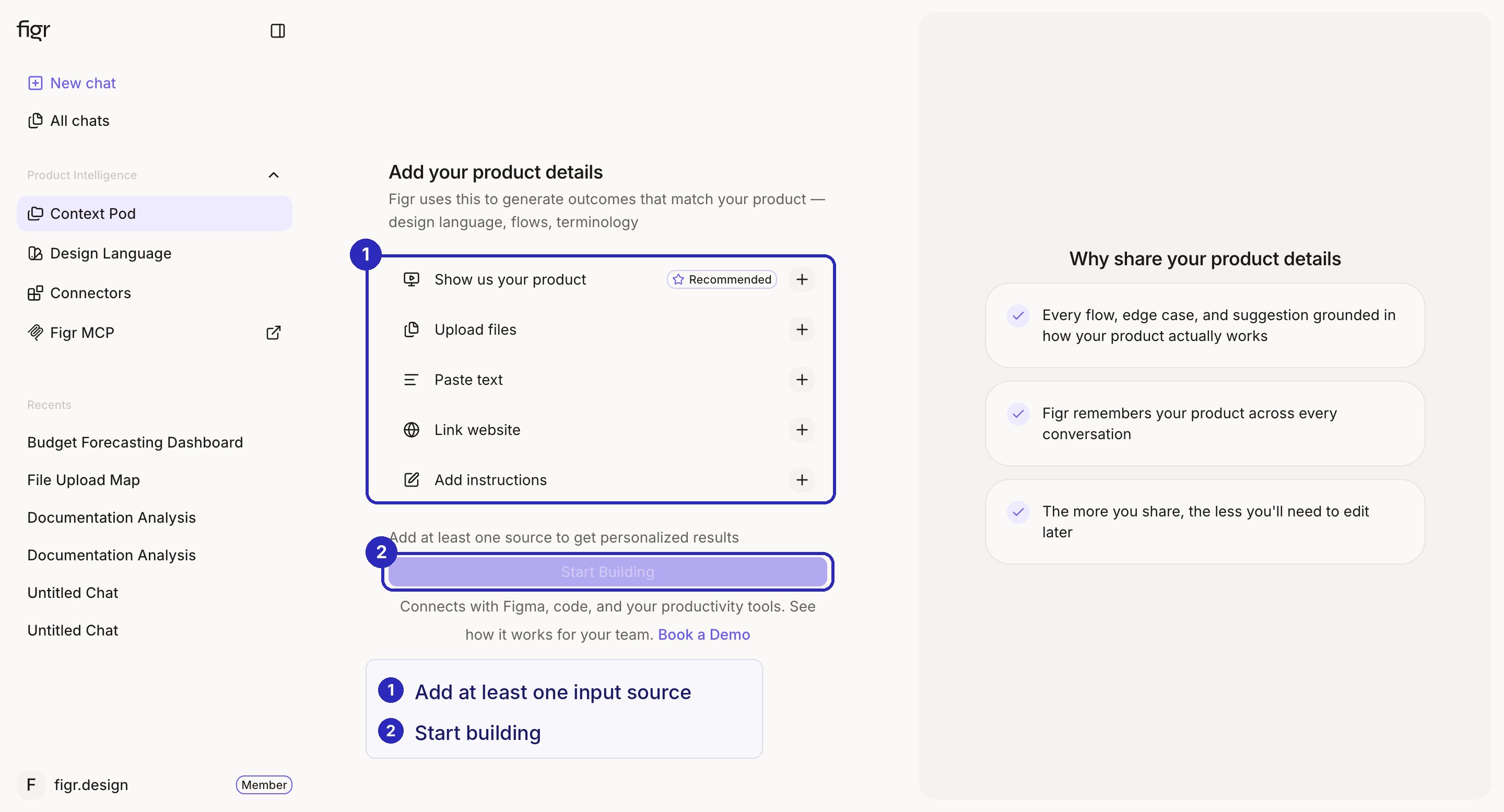
    Bring in one screen, recording, doc, or link so Figr understands your product. A single source already makes the output feel like your product instead of a blank-slate prompt. The full setup lives in [Add product context](/design-intelligence/product-context).

    <Frame caption="Add one source to make Figr product-aware">
      <img src="https://mintcdn.com/figr-1af7ae64/B-CZDullpzC9Nrue/images/context-pod-create.png?fit=max&auto=format&n=B-CZDullpzC9Nrue&q=85&s=9f0353b05325a9527263206b2bc6f383" alt="Adding product context to a project" width="2880" height="1555" data-path="images/context-pod-create.png" />
    </Frame>
  </Step>

  <Step title="Describe what you want">
    Write a short prompt for the screen or flow you need, and attach any context. Keep it simple here; for ready-made prompts see the [Prompt Library](/prompt-library).

    <Frame caption="Prompt box with attachments">
      <img src="https://mintcdn.com/figr-1af7ae64/9R6ZCMMA1ZL6O6WC/images/canvas-chat-reference.png?fit=max&auto=format&n=9R6ZCMMA1ZL6O6WC&q=85&s=da2aeeefb689c3a54b3f3e0161d9289e" alt="Prompt box with attachment options" width="2880" height="1628" data-path="images/canvas-chat-reference.png" />
    </Frame>
  </Step>

  <Step title="Let Figr design">
    Figr reasons through the flow and generates a high-fidelity prototype that follows your design language.\\

    <Frame caption="Generated prototype">
      <img src="https://mintcdn.com/figr-1af7ae64/z16Z7ZdXfoZy_c4N/images/High-Fidelity-Prototype.png?fit=max&auto=format&n=z16Z7ZdXfoZy_c4N&q=85&s=720a06542732776a72f6d7e6a4a9dbea" alt="High Fidelity Prototype" width="3057" height="1872" data-path="images/High-Fidelity-Prototype.png" />
    </Frame>
  </Step>

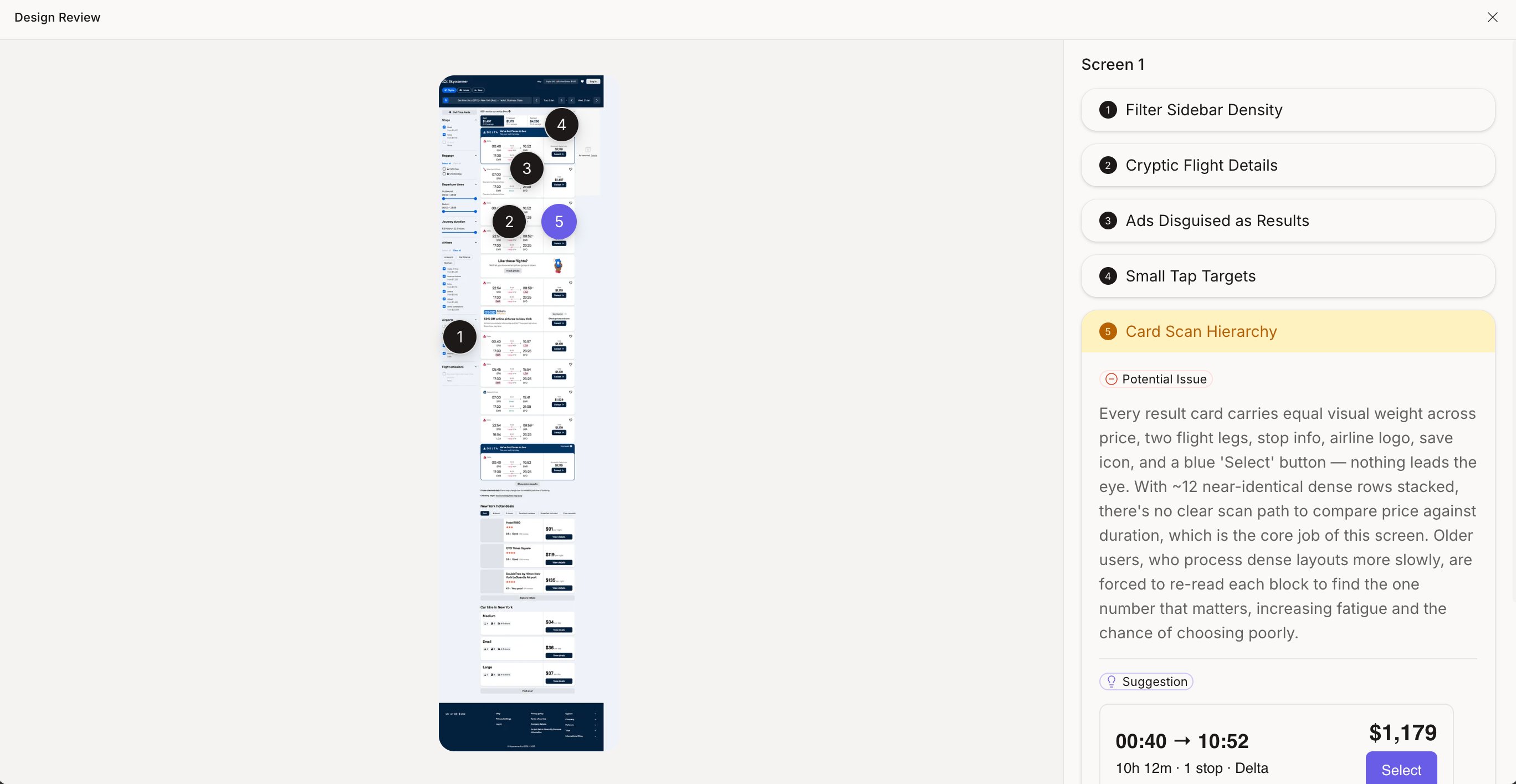
  <Step title="Review and refine">
    Edit specific parts without regenerating the whole screen. See [Edit without regenerating](/designing/edits/click-to-refine).

    <Frame caption="Ask for a change in chat and refine in place">
      <img src="https://mintcdn.com/figr-1af7ae64/B-CZDullpzC9Nrue/images/03-04-review-ux.png?fit=max&auto=format&n=B-CZDullpzC9Nrue&q=85&s=139c6bf3a00e3d84382515ab746b8c2a" alt="Reviewing and refining a generated screen" width="2736" height="1415" data-path="images/03-04-review-ux.png" />
    </Frame>
  </Step>

  <Step title="Export or share">
    Hand off to Figma, a shareable link, an image, or code. See [Export to Figma](/designing/export/one-click-figma).

    <Frame caption="Export and share options">
      <img src="https://mintcdn.com/figr-1af7ae64/z16Z7ZdXfoZy_c4N/images/Export-Share-and-Publish.png?fit=max&auto=format&n=z16Z7ZdXfoZy_c4N&q=85&s=5d9d0cdeb50fb01a592e5ec041ef2117" alt="Export to Figma, link, image, or code" lightAlt="Export to Figma, link, image, or code" darkAlt="Export to Figma, link, image, or code" className="dark:hidden" width="1672" height="941" data-path="images/Export-Share-and-Publish.png" />

      <img src="https://placehold.co/1600x900/EEEEEE/31343C?text=export-share.png" alt="Export to Figma, link, image, or code" lightAlt="Export to Figma, link, image, or code" darkAlt="Export to Figma, link, image, or code" className="hidden dark:block" />
    </Frame>
  </Step>
</Steps>

<Tip>
  The more product context you add, the closer the output matches your product. Once you have run through this, set up your full product context and [design system](/design-intelligence/design-system).
</Tip>

## Next

<CardGroup cols={2}>
  <Card title="Add product context" href="/design-intelligence/product-context">
    The full setup that makes Figr product-aware.
  </Card>

  <Card title="Export to Figma" href="/designing/export/one-click-figma">
    Take your prototype into Figma for handoff.
  </Card>
</CardGroup>