> ## Documentation Index
> Fetch the complete documentation index at: https://docs.figr.design/llms.txt
> Use this file to discover all available pages before exploring further.
# Figma Input
> Connect Figma to Figr with the Figma Sync plugin: pull real frames, tokens, and components into your prompts, and push finished designs back.
Figr's Figma integration runs through one community plugin, Figr AI Figma Sync. Install it once and it works both ways:
* **Figma to Figr**: select frames in Figma and reference them live in Figr's chat.
* **Figr to Figma**: push a Figr prototype back into Figma as editable frames.
This replaces the old "paste a frame link" flow. Selection now happens inside Figma, and Figr reads it automatically.
## First-time setup
You do this once per account.
In the chat composer, open the Connectors menu and select **Figma**. This opens the Figr AI Figma Sync page on the Figma Community.
Click **Open in** and load the plugin into any Figma file, then run it. A panel appears with a **Connect to Figr** button.
Click **Connect to Figr**. A browser tab opens for a quick authorization. When you see "Plugin connected successfully," return to Figma.
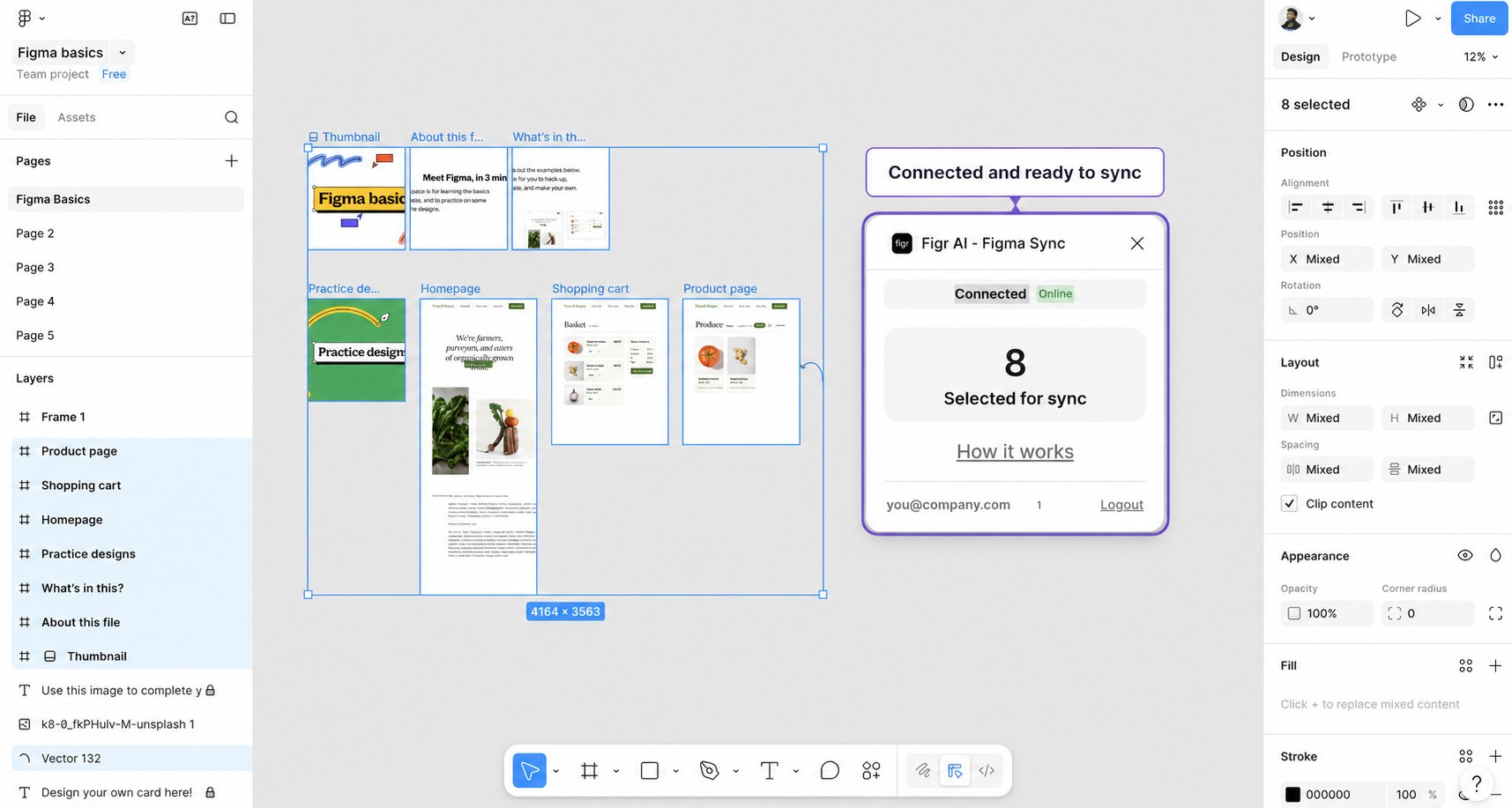
Once connected, the plugin shows a persistent status: Connected, Online, your email, and a Logout option.
 ## What Figr can access
Figr can read the frames, tokens, and components you select, process that selection as design input, and paste frames you export from Figr back into Figma.
Figr cannot edit or delete your existing Figma work, and cannot access files you have not opened the plugin in. You control the connection from the plugin and can log out anytime.
## Bring designs in
Click one or more frames on the canvas. The plugin updates live to show how many are tracked, for example "12 Selected for sync."
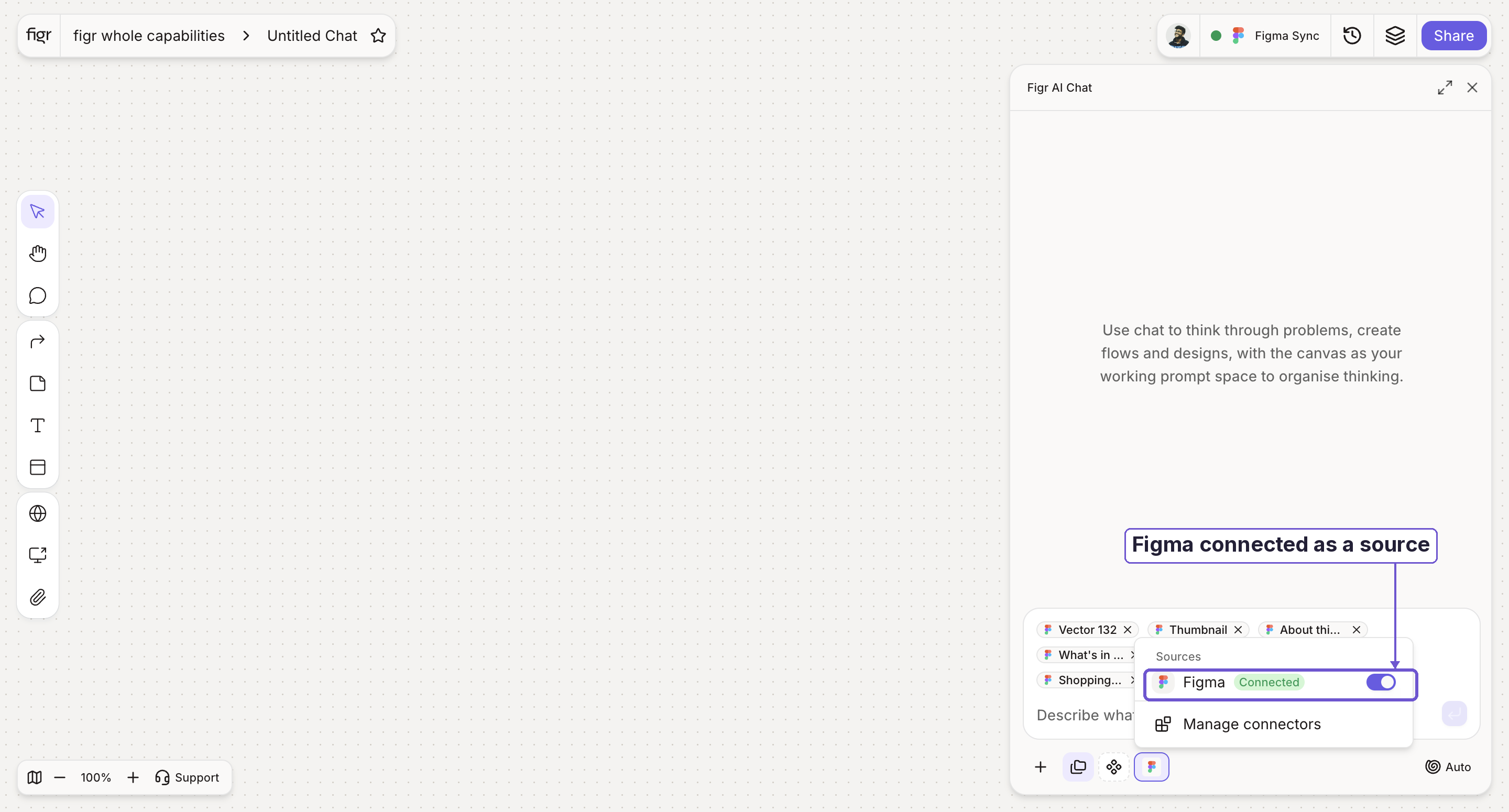
In the composer, turn the Figma connector on. It references whatever you currently have selected in Figma, with no copying or links.
Figr imports the layout, captures a screenshot of each frame, and reads the real design values behind them.
The selection is live: change what is selected in Figma and the count updates instantly. Select one frame to refine a single screen, or a dozen to give Figr a full surface to work from.
## What Figr can access
Figr can read the frames, tokens, and components you select, process that selection as design input, and paste frames you export from Figr back into Figma.
Figr cannot edit or delete your existing Figma work, and cannot access files you have not opened the plugin in. You control the connection from the plugin and can log out anytime.
## Bring designs in
Click one or more frames on the canvas. The plugin updates live to show how many are tracked, for example "12 Selected for sync."
In the composer, turn the Figma connector on. It references whatever you currently have selected in Figma, with no copying or links.
Figr imports the layout, captures a screenshot of each frame, and reads the real design values behind them.
The selection is live: change what is selected in Figma and the count updates instantly. Select one frame to refine a single screen, or a dozen to give Figr a full surface to work from.
 When you pull frames in, Figr reads more than the picture:
* **Frames and layout**: structure, hierarchy, and arrangement
* **Tokens and variables**: exact colors, spacing, and type values
* **Components and variants**: your real building blocks, not lookalikes
## Push designs back
On a Figr prototype, open the export dropdown and choose **Export to Figma**. This copies the frame data to your clipboard.
Open the Figr AI Figma Sync plugin in the file you want the frame in.
The frame materializes on your Figma canvas as editable layers, ready to refine.
The export direction has two limits today. Each export carries only the one frame you triggered it from, so move multiple frames one at a time. Pasted frames arrive as plain groups, so reapply Figma Auto Layout manually. Both are in active development; the handoff is one-shot in each direction, not a live round-trip.
## Why Figma input beats a screenshot
When Figr analyzes an image, it estimates colors, guesses spacing, and approximates radius. Figma frames give it the real values instead.
| Screenshot input | Figma frame input |
| ----------------------------- | -------------------------- |
| Colors estimated from pixels | Exact values, like #6366F1 |
| Spacing approximated visually | Precise spacing, like 24px |
| Border radius guessed | Actual radius, like 8px |
| Typography inferred | Real typography settings |
| Font weights assumed | Correct weights and sizes |
## When to use which
| Use Figma frames | A screenshot is fine |
| ---------------------------------------- | ----------------------------------------------- |
| Your own product designs | Competitor analysis, since you lack their Figma |
| Design system components | Quick inspiration |
| Screens you want to match exactly | External reference designs |
| Building on or maintaining existing work | Live product captures |
## Best practices
* Select the relevant frames, not the whole file. A tighter selection is a clearer signal.
* Always pair frames with a prompt. The selection tells Figr what to look at; the prompt tells it what to do.
* Set your design language with high-value frames: a style guide or tokens page, component library frames, pattern docs, and recent approved designs.
Example prompts:
```text theme={null}
Match this dashboard style but create a settings page with these sections.
```
```text theme={null}
Use the card component from this frame for a feature announcement layout.
```
```text theme={null}
Keep this navigation pattern but redesign the content area for data viz.
```
## Manage your connection
Your status lives in the plugin window in Figma. Click **Logout** to revoke access immediately. To switch accounts, log out and reconnect with a different account. To reconnect, run the plugin and click **Connect to Figr** again anytime.
## Troubleshooting
| Issue | Fix |
| ---------------------------------------- | ---------------------------------------------------------------------- |
| Plugin shows "0 Selected for sync" | Click directly on a frame in Figma; the count updates live |
| Figr connector will not reference frames | Confirm the plugin shows Connected, then re-toggle the Figma connector |
| Exported frame has no Auto Layout | Expected; reapply Auto Layout in Figma |
| Only one frame came through on export | Expected; export each frame separately |
## Related
Attach synced frames so Figr reuses them across the project.
More on sending finished designs back to your Figma workflow.
Where the export dropdown lives on a selected prototype.
{/* DOC PLAN, internal, remove before publishing
Priority: P0/P1 | Ownership: Self (Product verify) | Status: In Progress
Assets (placeholders, capture pending):
- figma-input-plugin.png, connected plugin panel in Figma
- figma-input-connector.png, Figma connector toggled on in the Figr composer
- figma-input-export.png (optional), Export to Figma from the prototype dropdown
VERIFY: plugin name string, exact connector label, whether multi-frame export or Auto Layout has shipped since this doc.
Reference links: Context Pods, Export to Figma, Item Actions
*/}
When you pull frames in, Figr reads more than the picture:
* **Frames and layout**: structure, hierarchy, and arrangement
* **Tokens and variables**: exact colors, spacing, and type values
* **Components and variants**: your real building blocks, not lookalikes
## Push designs back
On a Figr prototype, open the export dropdown and choose **Export to Figma**. This copies the frame data to your clipboard.
Open the Figr AI Figma Sync plugin in the file you want the frame in.
The frame materializes on your Figma canvas as editable layers, ready to refine.
The export direction has two limits today. Each export carries only the one frame you triggered it from, so move multiple frames one at a time. Pasted frames arrive as plain groups, so reapply Figma Auto Layout manually. Both are in active development; the handoff is one-shot in each direction, not a live round-trip.
## Why Figma input beats a screenshot
When Figr analyzes an image, it estimates colors, guesses spacing, and approximates radius. Figma frames give it the real values instead.
| Screenshot input | Figma frame input |
| ----------------------------- | -------------------------- |
| Colors estimated from pixels | Exact values, like #6366F1 |
| Spacing approximated visually | Precise spacing, like 24px |
| Border radius guessed | Actual radius, like 8px |
| Typography inferred | Real typography settings |
| Font weights assumed | Correct weights and sizes |
## When to use which
| Use Figma frames | A screenshot is fine |
| ---------------------------------------- | ----------------------------------------------- |
| Your own product designs | Competitor analysis, since you lack their Figma |
| Design system components | Quick inspiration |
| Screens you want to match exactly | External reference designs |
| Building on or maintaining existing work | Live product captures |
## Best practices
* Select the relevant frames, not the whole file. A tighter selection is a clearer signal.
* Always pair frames with a prompt. The selection tells Figr what to look at; the prompt tells it what to do.
* Set your design language with high-value frames: a style guide or tokens page, component library frames, pattern docs, and recent approved designs.
Example prompts:
```text theme={null}
Match this dashboard style but create a settings page with these sections.
```
```text theme={null}
Use the card component from this frame for a feature announcement layout.
```
```text theme={null}
Keep this navigation pattern but redesign the content area for data viz.
```
## Manage your connection
Your status lives in the plugin window in Figma. Click **Logout** to revoke access immediately. To switch accounts, log out and reconnect with a different account. To reconnect, run the plugin and click **Connect to Figr** again anytime.
## Troubleshooting
| Issue | Fix |
| ---------------------------------------- | ---------------------------------------------------------------------- |
| Plugin shows "0 Selected for sync" | Click directly on a frame in Figma; the count updates live |
| Figr connector will not reference frames | Confirm the plugin shows Connected, then re-toggle the Figma connector |
| Exported frame has no Auto Layout | Expected; reapply Auto Layout in Figma |
| Only one frame came through on export | Expected; export each frame separately |
## Related
Attach synced frames so Figr reuses them across the project.
More on sending finished designs back to your Figma workflow.
Where the export dropdown lives on a selected prototype.
{/* DOC PLAN, internal, remove before publishing
Priority: P0/P1 | Ownership: Self (Product verify) | Status: In Progress
Assets (placeholders, capture pending):
- figma-input-plugin.png, connected plugin panel in Figma
- figma-input-connector.png, Figma connector toggled on in the Figr composer
- figma-input-export.png (optional), Export to Figma from the prototype dropdown
VERIFY: plugin name string, exact connector label, whether multi-frame export or Auto Layout has shipped since this doc.
Reference links: Context Pods, Export to Figma, Item Actions
*/}