> ## Documentation Index
> Fetch the complete documentation index at: https://docs.figr.design/llms.txt
> Use this file to discover all available pages before exploring further.
# Setting up Connectors
> Connect live tools like Mixpanel, Notion, and Linear so Figr pulls real data into your designs at query time.
A Connector links Figr to an external tool through the Model Context Protocol (MCP). Once connected, the agent can call that tool live during a canvas query, fetching funnel data, reading a doc, or pulling tickets, and design directly from what it finds.
Where a Design Language defines how things look and a Context Pod captures what your product is, Connectors bring in what is true right now: your live, changing data.
## Available connectors
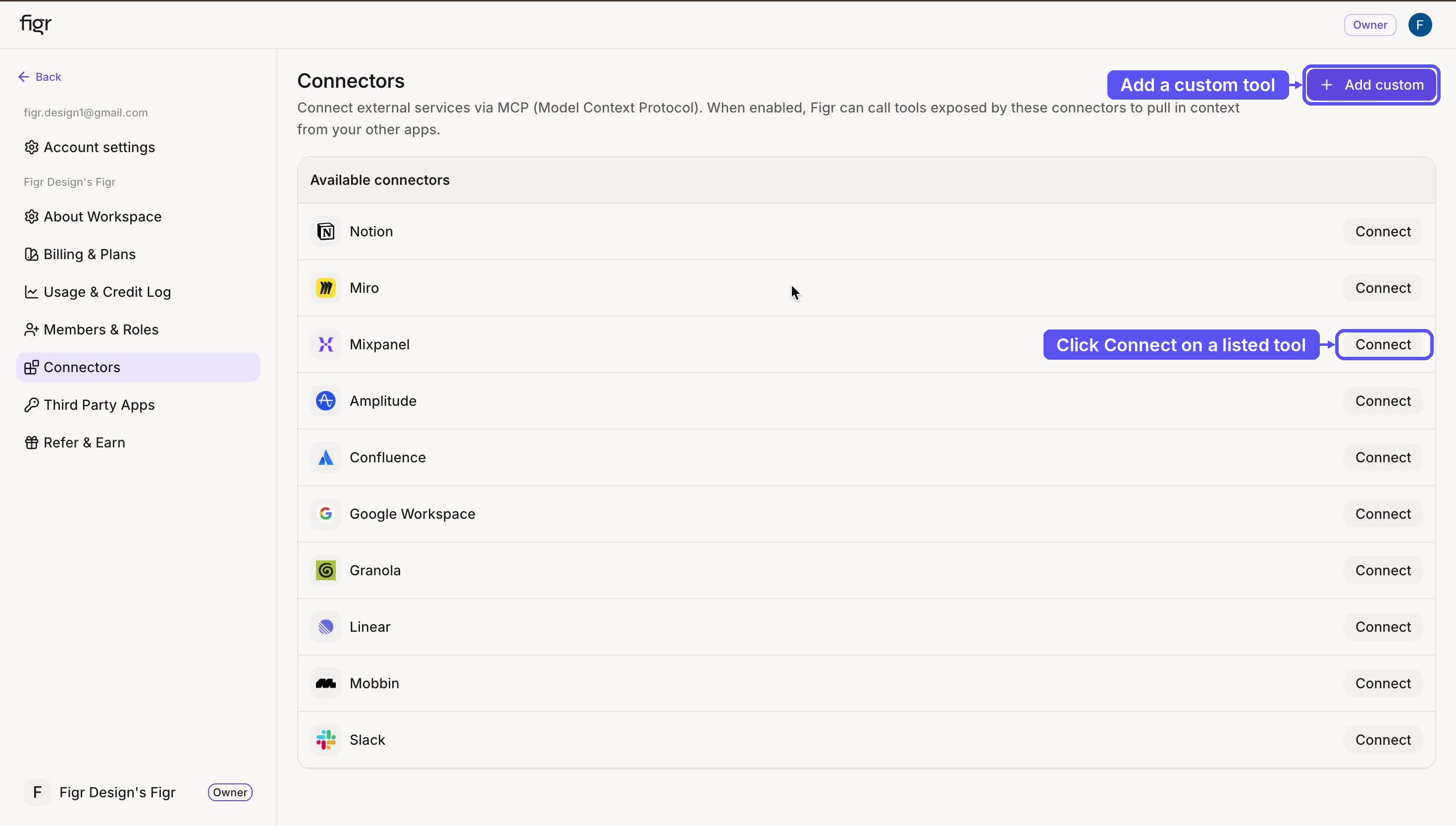
The Connectors page lists ready-to-use integrations:
* **Analytics**: Mixpanel, Amplitude
* **Docs and knowledge**: Notion, Confluence, Google Workspace
* **Product and planning**: Linear, Miro, Mobbin
* **Communication**: Slack, Granola
Each shows its name, category, and connection status. Anything not listed can be added as a custom connector.
## Open the Connectors page
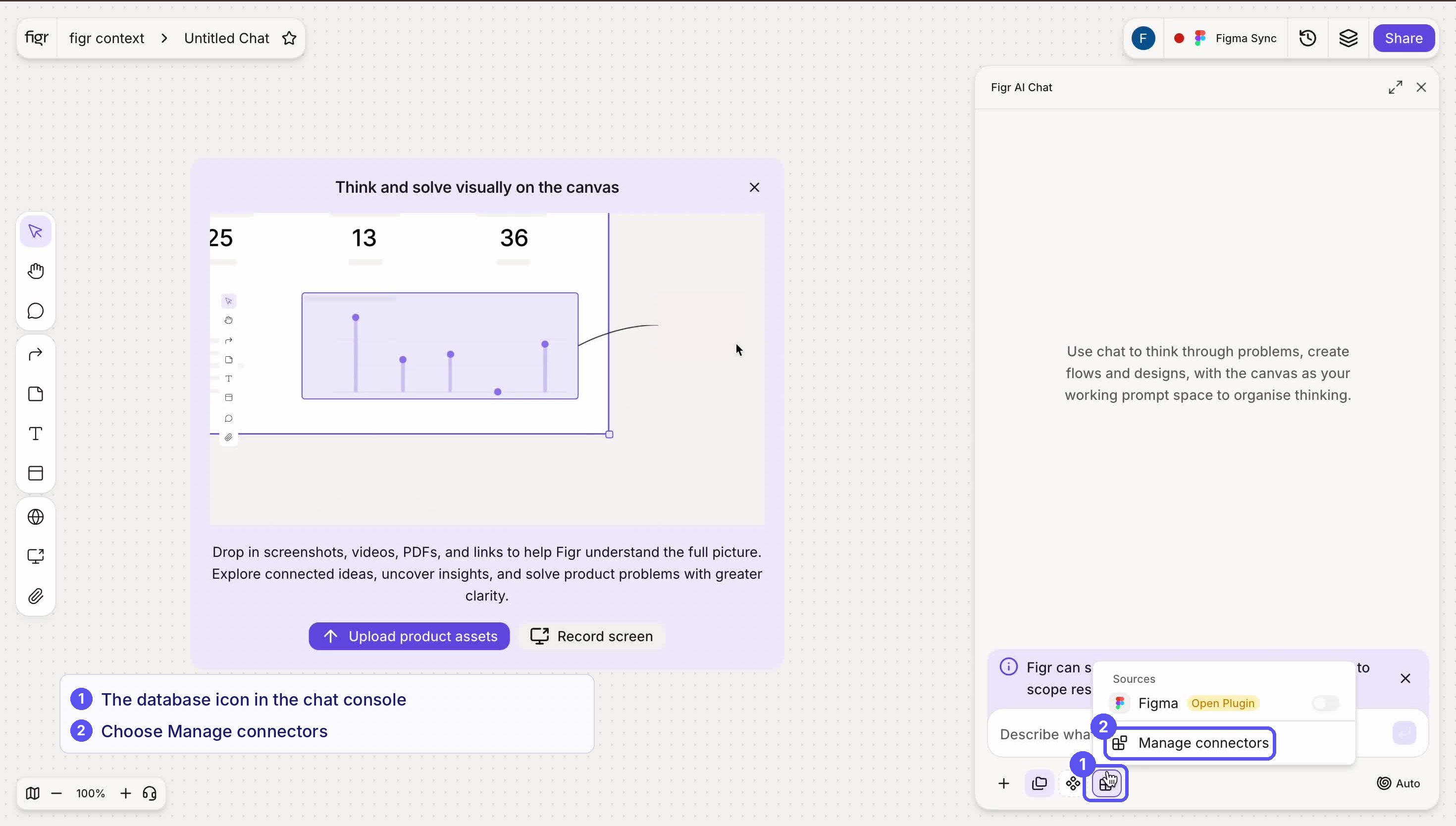
Reach it two ways: from the canvas, click the database icon in the chat console, then **Manage connectors**. Or open **Connectors** in workspace settings.
 ## Connect a standard tool
Using Mixpanel as the example:
Find the tool on the Connectors page and click **Connect**.
A modal opens, like "Mixpanel, Add connector," with instructions and a warning that you will be redirected to authenticate.
Click **Connect with OAuth**. Your browser opens the provider's authorization page. Review the requested access, like tracking, metrics, and funnel queries, then click **Authorize**.
You land back with a "Connected to Mixpanel" banner. The tool now shows a green **Connected** badge and a toggle.
Toggle a connector off anytime to stop the agent from using it, without disconnecting.
## Connect a standard tool
Using Mixpanel as the example:
Find the tool on the Connectors page and click **Connect**.
A modal opens, like "Mixpanel, Add connector," with instructions and a warning that you will be redirected to authenticate.
Click **Connect with OAuth**. Your browser opens the provider's authorization page. Review the requested access, like tracking, metrics, and funnel queries, then click **Authorize**.
You land back with a "Connected to Mixpanel" banner. The tool now shows a green **Connected** badge and a toggle.
Toggle a connector off anytime to stop the agent from using it, without disconnecting.
 ## Add a custom connector
Any MCP-compatible tool can be added manually.
Top right of the Connectors page.
Name (a label, like Figr MCP), MCP Server URL (the endpoint, like [https://mcp.figr.design/mcp](https://mcp.figr.design/mcp)), and Transport type (the connection method).
Click **Add connector**. It saves with a yellow **Requires authentication** badge.
Click **Connect** to run the OAuth handshake, then **Allow access** on the consent screen. The badge turns green and the connector is live.
## Add a custom connector
Any MCP-compatible tool can be added manually.
Top right of the Connectors page.
Name (a label, like Figr MCP), MCP Server URL (the endpoint, like [https://mcp.figr.design/mcp](https://mcp.figr.design/mcp)), and Transport type (the connection method).
Click **Add connector**. It saves with a yellow **Requires authentication** badge.
Click **Connect** to run the OAuth handshake, then **Allow access** on the consent screen. The badge turns green and the connector is live.
.png?fit=max&auto=format&n=z16Z7ZdXfoZy_c4N&q=85&s=e011dec93d35af65cbc892a0708f1b59)
 ### Connection states
| State | Badge | Meaning |
| ----------------------- | ------ | ----------------------------------- |
| Not connected | None | Available but not linked |
| Requires authentication | Yellow | Registered, needs OAuth to activate |
| Connected | Green | Live, the agent can query it |
## Using connectors in a design
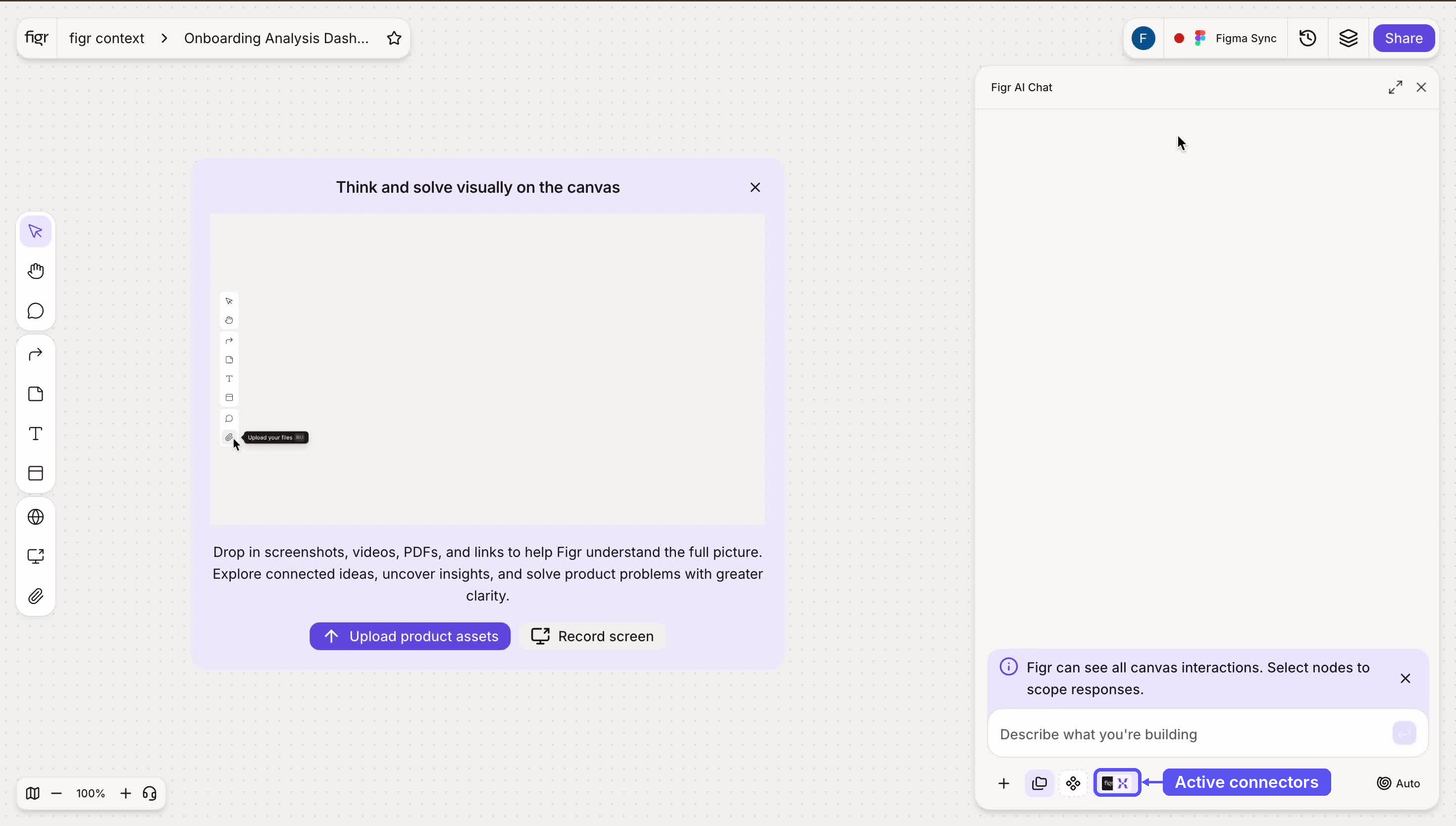
Once a tool is connected, ask for what you need on the canvas. The agent decides when to call the connector and pulls the data in mid-task.
```text theme={null}
Find the biggest onboarding drop-off step, and brainstorm how to fix it.
```
```text theme={null}
Pull our active Linear bugs and design a triage board.
```
```text theme={null}
Use last month's funnel data to design an analytics summary.
```
For the first one, Figr queries the connected Mixpanel source for live funnel data, finds the weakest step, and designs against the real numbers. No export, no copy-paste.
### Connection states
| State | Badge | Meaning |
| ----------------------- | ------ | ----------------------------------- |
| Not connected | None | Available but not linked |
| Requires authentication | Yellow | Registered, needs OAuth to activate |
| Connected | Green | Live, the agent can query it |
## Using connectors in a design
Once a tool is connected, ask for what you need on the canvas. The agent decides when to call the connector and pulls the data in mid-task.
```text theme={null}
Find the biggest onboarding drop-off step, and brainstorm how to fix it.
```
```text theme={null}
Pull our active Linear bugs and design a triage board.
```
```text theme={null}
Use last month's funnel data to design an analytics summary.
```
For the first one, Figr queries the connected Mixpanel source for live funnel data, finds the weakest step, and designs against the real numbers. No export, no copy-paste.
 ## Why it matters
Static inputs go stale. A screenshot of last quarter's dashboard is wrong the moment the data moves. Connectors keep Figr current: every query fetches fresh data, so designs reflect reality at the moment you ask.
| Without connectors | With connectors |
| -------------------------------- | ------------------------------------ |
| Paste data into every prompt | The agent fetches it live, on demand |
| Numbers go stale between updates | Always the current data |
| Design from assumed metrics | Design from real metrics |
| Switch tools to look things up | The agent looks it up for you |
## Best practices
* Connect only what you will use. Each active connector is a tool the agent may call, and a focused set keeps queries fast and predictable.
* Toggle off rather than disconnect when pausing a tool you will return to.
* Name custom connectors clearly so you can tell them apart.
* Be specific in prompts. Name the data you want, like "last 30 days of signup funnel," so the agent queries precisely.
* Review OAuth scopes before authorizing, so you know exactly what access you are granting.
## Troubleshooting
| Issue | Fix |
| --------------------------------------------------- | -------------------------------------------------------------- |
| Custom connector stuck on "Requires authentication" | Click Connect and complete the OAuth consent flow |
| Agent is not pulling live data | Confirm a green Connected badge and that the toggle is on |
| OAuth redirect fails | Log into the provider in the same browser, then retry |
| Connector returns no data | Verify your account has access to that data in the source tool |
## Related
Expose your own project context to AI coding assistants over MCP.
Bundle static product knowledge for a project.
Teach Figr how your product should look.
{/* DOC PLAN, internal, remove before publishing
Priority: P0 | Ownership: Self (Product verify) | Status: In Progress
Assets (placeholders, capture pending, from Connector_UI_flow.pdf):
- connectors-console.png, canvas chat console with Manage connectors
- connectors-list.png, Connectors page list with + Add custom
- connectors-custom.png, Add custom connector modal
- connectors-in-use.png, canvas query pulling live Mixpanel data
- optional: connectors-mixpanel-modal.png (Mixpanel Add connector modal), connectors-connected-banner.png (Connected banner + green badge), connectors-custom-registered.png (yellow Requires authentication badge)
VERIFY: exact connector list and categories, transport-type options, default OAuth scopes per provider.
Reference links: Figr MCP, Context Pods, Setting up Design Language
*/}
## Why it matters
Static inputs go stale. A screenshot of last quarter's dashboard is wrong the moment the data moves. Connectors keep Figr current: every query fetches fresh data, so designs reflect reality at the moment you ask.
| Without connectors | With connectors |
| -------------------------------- | ------------------------------------ |
| Paste data into every prompt | The agent fetches it live, on demand |
| Numbers go stale between updates | Always the current data |
| Design from assumed metrics | Design from real metrics |
| Switch tools to look things up | The agent looks it up for you |
## Best practices
* Connect only what you will use. Each active connector is a tool the agent may call, and a focused set keeps queries fast and predictable.
* Toggle off rather than disconnect when pausing a tool you will return to.
* Name custom connectors clearly so you can tell them apart.
* Be specific in prompts. Name the data you want, like "last 30 days of signup funnel," so the agent queries precisely.
* Review OAuth scopes before authorizing, so you know exactly what access you are granting.
## Troubleshooting
| Issue | Fix |
| --------------------------------------------------- | -------------------------------------------------------------- |
| Custom connector stuck on "Requires authentication" | Click Connect and complete the OAuth consent flow |
| Agent is not pulling live data | Confirm a green Connected badge and that the toggle is on |
| OAuth redirect fails | Log into the provider in the same browser, then retry |
| Connector returns no data | Verify your account has access to that data in the source tool |
## Related
Expose your own project context to AI coding assistants over MCP.
Bundle static product knowledge for a project.
Teach Figr how your product should look.
{/* DOC PLAN, internal, remove before publishing
Priority: P0 | Ownership: Self (Product verify) | Status: In Progress
Assets (placeholders, capture pending, from Connector_UI_flow.pdf):
- connectors-console.png, canvas chat console with Manage connectors
- connectors-list.png, Connectors page list with + Add custom
- connectors-custom.png, Add custom connector modal
- connectors-in-use.png, canvas query pulling live Mixpanel data
- optional: connectors-mixpanel-modal.png (Mixpanel Add connector modal), connectors-connected-banner.png (Connected banner + green badge), connectors-custom-registered.png (yellow Requires authentication badge)
VERIFY: exact connector list and categories, transport-type options, default OAuth scopes per provider.
Reference links: Figr MCP, Context Pods, Setting up Design Language
*/}