> ## Documentation Index
> Fetch the complete documentation index at: https://docs.figr.design/llms.txt
> Use this file to discover all available pages before exploring further.
# Context Pods
> Reusable product knowledge Figr can understand across projects, prompts, and tasks.
A Context Pod is the most flexible way to teach Figr about your product. Where a Design Language defines how things look, a Context Pod captures what your product is and how it behaves: flows, terminology, user needs, and constraints.
Build it once, attach it to any project, and reference it as a chip on any prompt.
## Create a Context Pod
From the sidebar, under **Product intelligence**.
Click **Create new Context Pod** (top right). Give it a name (required) and an optional description.
This opens the **Add your product details** screen, where you connect your sources.
## Add your sources
A Context Pod accepts five source types. Use as many as you like; the more you add, the deeper Figr's understanding.
### Show us your product (recommended)
The richest source. Show Figr your product in motion.
* Record a walkthrough directly, with optional microphone narration and full-screen capture
* Or drag and drop an existing screen recording
A recorded flow tells Figr how screens connect and how users move through them, context a static screenshot cannot carry.
### Upload files
Drag and drop supporting material: PDFs and design specs, screenshots and images, documents, and other product files.
### Paste text
Open the note editor, give it a title, and write in the rich-text area. Useful for product overviews, terminology, or notes that do not live in a file.
### Link website
Paste a URL, like your product or marketing site. Figr validates the link and fetches the page so it can read your live content.
### Add instructions
Free-form guidance that shapes how the agent responds:
```text theme={null}
Be concise
```
```text theme={null}
Always use our terminology: Workspaces, not Projects
```
```text theme={null}
Prioritize mobile patterns
```
When your sources are in, click **Start Building** to save the pod.
## The pod summary
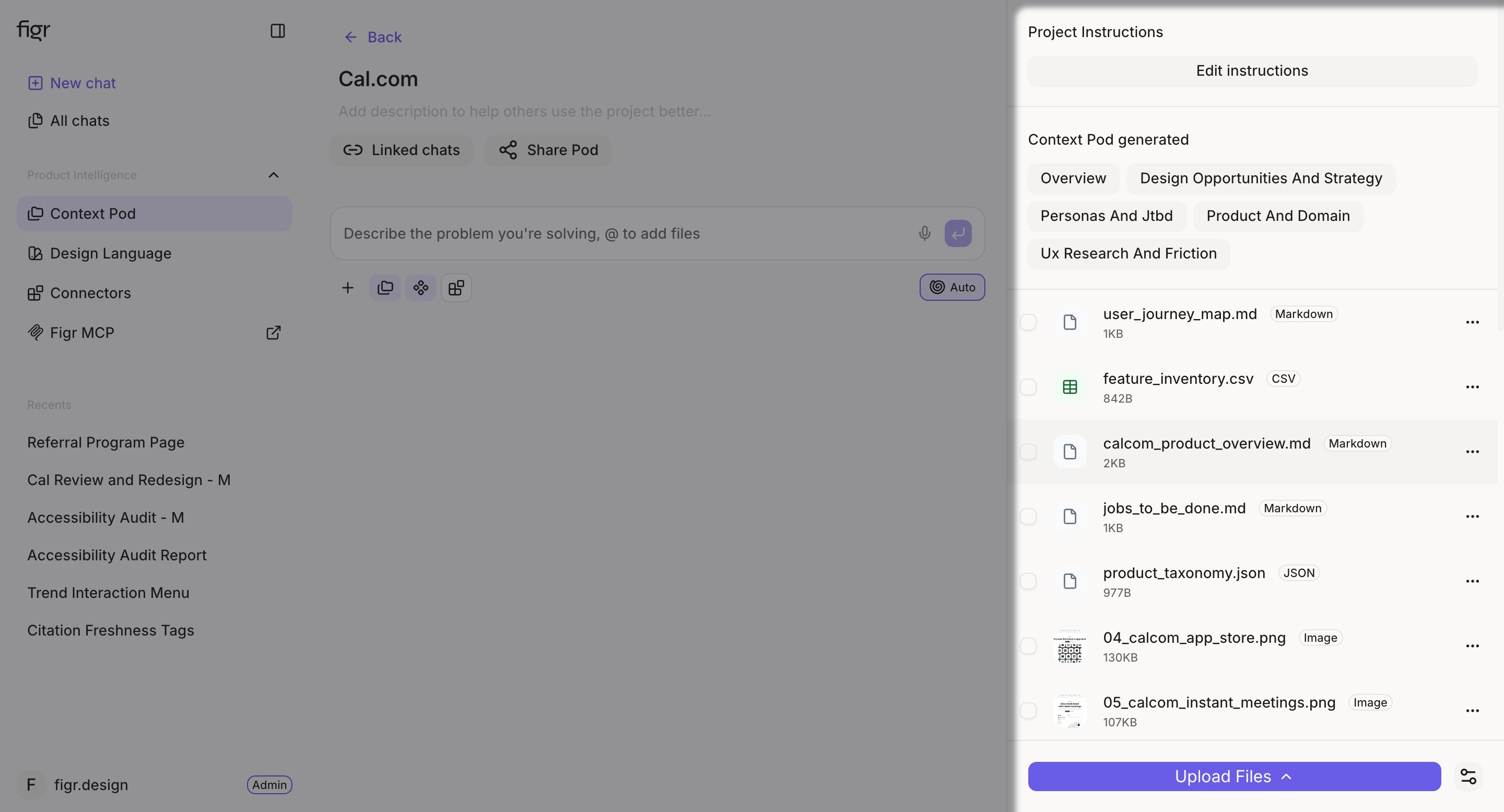
After building, you land on the pod's summary dashboard. A right-side drawer lists everything linked to the pod, every recording, file, note, link, and instruction, alongside its generated context status. Return here anytime to review what the pod knows or to add and remove sources.
 ## Use a Context Pod
A Context Pod only shapes output once you attach it to a prompt.
In a project, start a **New chat** on the canvas.
In the prompt box, open the attachment menu and select **Context Pod**.
## Use a Context Pod
A Context Pod only shapes output once you attach it to a prompt.
In a project, start a **New chat** on the canvas.
In the prompt box, open the attachment menu and select **Context Pod**.
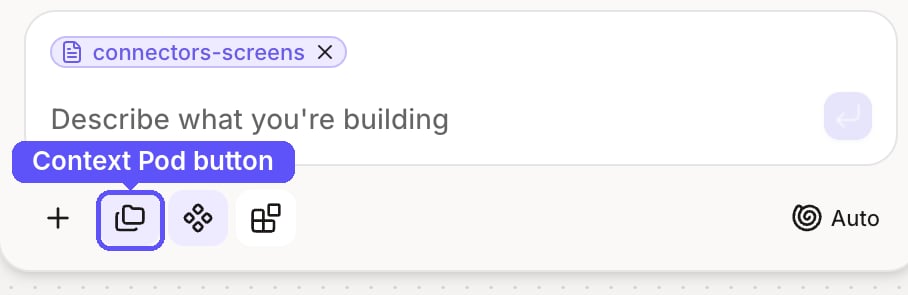
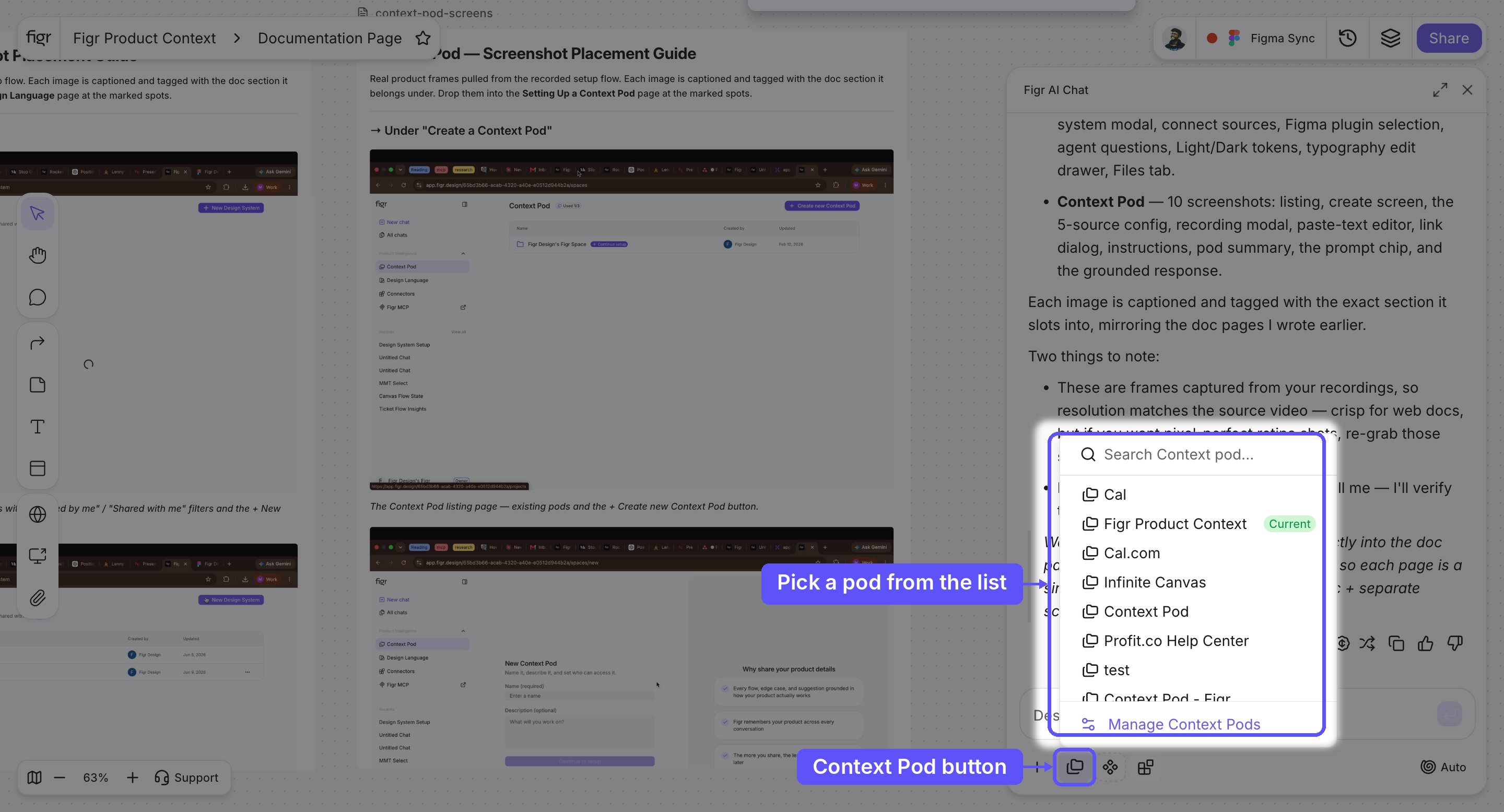 Pick the pod you want. It appears as an active chip on the prompt.
.png?fit=max&auto=format&n=z16Z7ZdXfoZy_c4N&q=85&s=e6414dab1b68ff2cf0cbe14a709f5991 "Context Pod Menu 1")
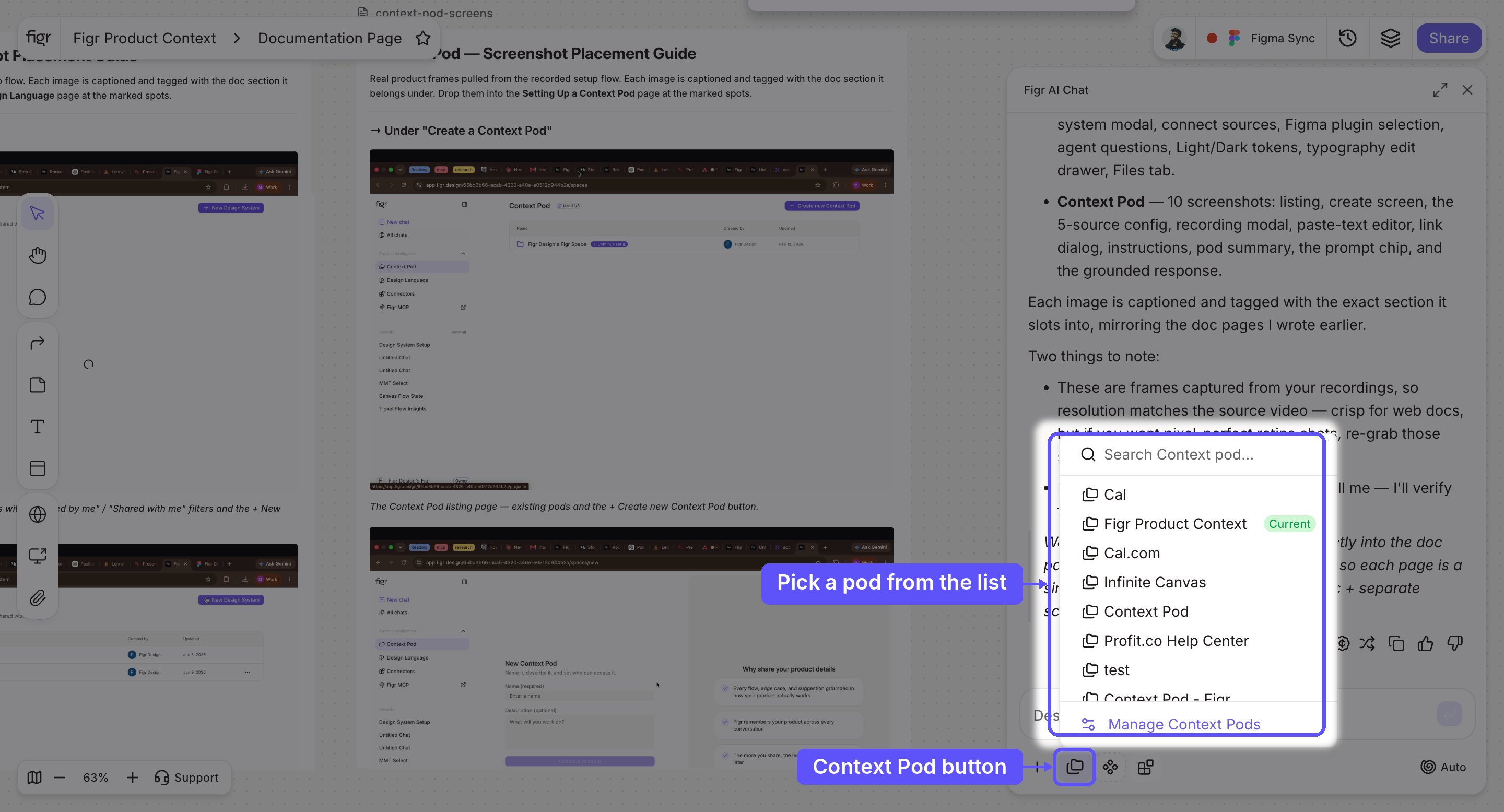 Submit your query and Figr grounds its response in the pod's sources, referencing your real flows, files, and terminology instead of generic assumptions. Attach the same pod across many projects, so product knowledge follows you everywhere.
## Context Pod vs Design Language
The two design-intelligence sources do different jobs, and most teams use both.
| | Context Pod | Design Language |
| -------- | -------------------------------------------- | --------------------------------------- |
| Captures | What your product is and how it works | How your product looks |
| Sources | Recordings, files, text, links, instructions | Figma frames, tokens, component files |
| Shapes | Flows, terminology, behavior, content | Colors, typography, spacing, components |
| Output | Designs that fit your product's logic | Designs that match your visual system |
## Why it matters
Without product context, Figr designs from generic assumptions: plausible screens that do not reflect your actual flows, naming, or user needs, and you re-explain your product in every prompt.
With a Context Pod attached, that knowledge is always present. Figr already knows your onboarding flow, your terminology, and your constraints, so it designs for your product, not a generic version of it.
## Best practices
* Lead with a recording. A walkthrough conveys flow and behavior that files alone cannot.
* Mix source types: a recording for flow, files for detail, instructions for tone.
* Keep instructions specific. Concrete rules like "use our terms" or "mobile-first" steer output more than vague ones.
* Reuse across projects. Build one strong pod and attach it everywhere instead of re-uploading per project.
* Keep it current. Refresh recordings and links when your product changes so context does not drift.
## Troubleshooting
| Issue | Fix |
| --------------------------------- | ------------------------------------------------------------------------------ |
| Website link will not attach | Confirm the URL is valid and public, and wait for the validation check to pass |
| Pod does not influence a response | Make sure it is attached as a chip on the prompt before submitting |
| Recording upload fails | Check the file is a supported video format and within the size limit |
| Output ignores your terminology | Add an explicit instruction spelling out the terms to use |
## Related
What a Context Pod is and how it grounds a project.
Teach Figr how your product should look.
Capture a flow to drop into a pod.
{/* DOC PLAN, internal, remove before publishing
Priority: P0 | Ownership: Self (Product verify) | Status: In Progress
Assets (placeholders, capture pending):
- context-pod-create.png, the Add your product details setup screen (already produced)
- context-pod-summary.png, summary dashboard with the sources drawer
- context-pod-chip.png, the pod attached as a chip in the prompt box
VERIFY: exact button labels (Create new Context Pod, Start Building), supported video formats and size limit, link validation behavior.
Reference links: Context Pods, Setting up Design Language, Screen Recordings
*/}
Submit your query and Figr grounds its response in the pod's sources, referencing your real flows, files, and terminology instead of generic assumptions. Attach the same pod across many projects, so product knowledge follows you everywhere.
## Context Pod vs Design Language
The two design-intelligence sources do different jobs, and most teams use both.
| | Context Pod | Design Language |
| -------- | -------------------------------------------- | --------------------------------------- |
| Captures | What your product is and how it works | How your product looks |
| Sources | Recordings, files, text, links, instructions | Figma frames, tokens, component files |
| Shapes | Flows, terminology, behavior, content | Colors, typography, spacing, components |
| Output | Designs that fit your product's logic | Designs that match your visual system |
## Why it matters
Without product context, Figr designs from generic assumptions: plausible screens that do not reflect your actual flows, naming, or user needs, and you re-explain your product in every prompt.
With a Context Pod attached, that knowledge is always present. Figr already knows your onboarding flow, your terminology, and your constraints, so it designs for your product, not a generic version of it.
## Best practices
* Lead with a recording. A walkthrough conveys flow and behavior that files alone cannot.
* Mix source types: a recording for flow, files for detail, instructions for tone.
* Keep instructions specific. Concrete rules like "use our terms" or "mobile-first" steer output more than vague ones.
* Reuse across projects. Build one strong pod and attach it everywhere instead of re-uploading per project.
* Keep it current. Refresh recordings and links when your product changes so context does not drift.
## Troubleshooting
| Issue | Fix |
| --------------------------------- | ------------------------------------------------------------------------------ |
| Website link will not attach | Confirm the URL is valid and public, and wait for the validation check to pass |
| Pod does not influence a response | Make sure it is attached as a chip on the prompt before submitting |
| Recording upload fails | Check the file is a supported video format and within the size limit |
| Output ignores your terminology | Add an explicit instruction spelling out the terms to use |
## Related
What a Context Pod is and how it grounds a project.
Teach Figr how your product should look.
Capture a flow to drop into a pod.
{/* DOC PLAN, internal, remove before publishing
Priority: P0 | Ownership: Self (Product verify) | Status: In Progress
Assets (placeholders, capture pending):
- context-pod-create.png, the Add your product details setup screen (already produced)
- context-pod-summary.png, summary dashboard with the sources drawer
- context-pod-chip.png, the pod attached as a chip in the prompt box
VERIFY: exact button labels (Create new Context Pod, Start Building), supported video formats and size limit, link validation behavior.
Reference links: Context Pods, Setting up Design Language, Screen Recordings
*/}