

Accessing organization settings
Click your profile icon in the top right corner. You’ll see a dropdown with your email, remaining credits, and organization options.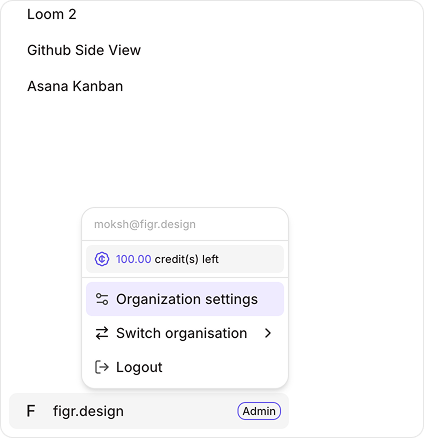
You can write to hi@figr.design to switch admins. An admin can also create multiple admins. The badge next to your organization name shows your role - Admin, Manager, Member, or Outsider.
Organization profile
This is where you set up the basics for your team.
Changing your organization name
Your organization name becomes your domain. Type “acme-design” and your domain becomes “acme-design.figr.design”. Can’t change it after setup? You’ll need to contact support. This prevents confusion once your team is collaborating.Domain access control
This is the big toggle. Turn it on and anyone with a matching email can walk right in. Let’s say your domain is “figr.design”. Someone with “alice@figr.design” can sign up and automatically join your organization. No invitation needed.When this is enabled, team members with your domain can’t create their own separate workspace. They’re redirected to yours instead.
Setting default roles for domain members
Right below the domain toggle, you’ll see “New users from your domain join as.” Pick what role they get automatically:- Member — They can create and work on projects
- Manager — They can also manage teams and invite people
- Outsider — They only see projects they’re invited to
Deleting your organization
At the bottom, there’s a red button: “Delete organisation.” Only Admins can delete. Even Managers can’t touch this.Managing your team
Click “Members & Roles” in the sidebar.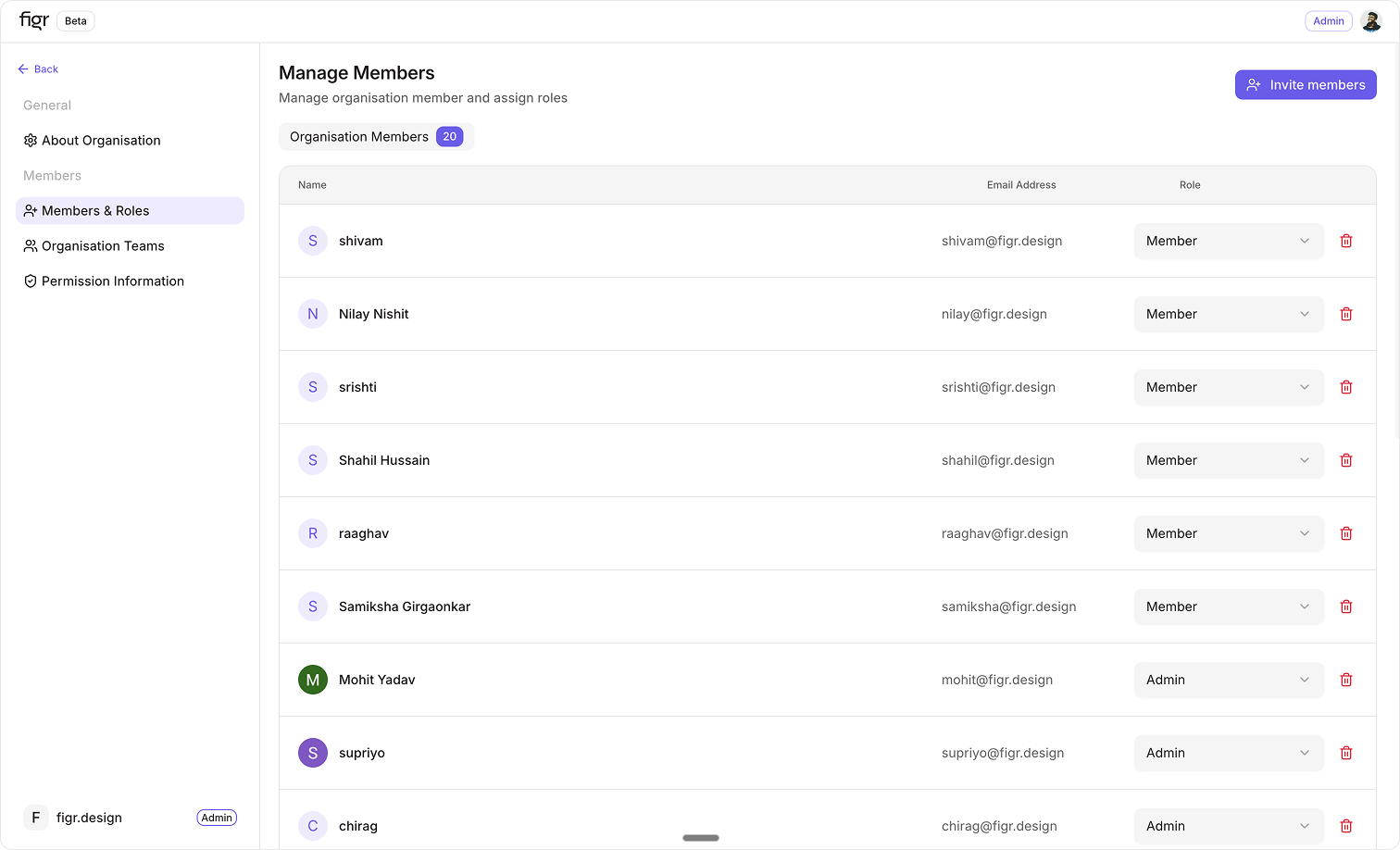
Adding people
Click “Invite members” in the top right. Type their email. Pick a role from the dropdown. Send. Domain access enabled? You might not even need to invite them. They’ll show up automatically when they sign up with a matching email.Changing someone’s role
Click the dropdown next to their current role. You’ll see all four options.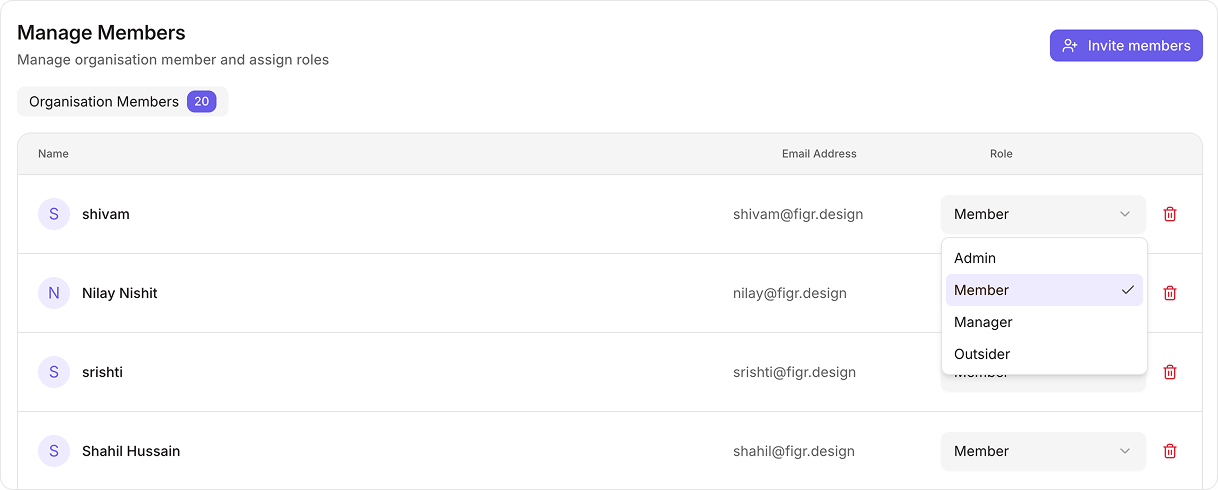
Removing members
Click the trash icon on the right side of their row. They lose access to everything immediately. Projects, teams, files—all gone.Removed members don’t get a notification. If you want to let them know, tell them yourself.
Organization teams
This is different from members. Teams let you group people for specific projects or departments. You’ll find “Organisation Teams” in the sidebar. Create teams like “Design”, “Engineering”, or “Customer Success” to organize work. Managers and Admins can create and delete teams. Members can’t.Understanding roles
Figr has four roles. The difference between them is what they’re allowed to do.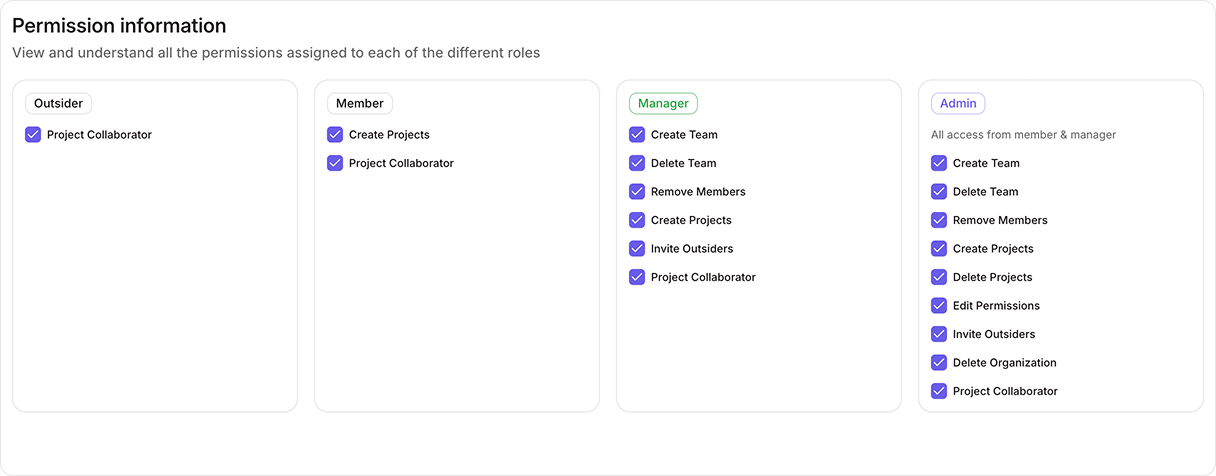
Outsider
Who this is for: External contractors, clients, agencies, consultants - anyone outside your company. They can only see and edit projects you explicitly invite them to. That’s it. They can’t see your other projects. Can’t create new ones. Can’t see who else is on your team. Permissions:- Project Collaborator (on invited projects only)
Member
Who this is for: Your core team. Designers, PMs, developers, researchers - people who build the product. They can create projects and collaborate freely. They can’t manage people or change settings. Permissions:- Create Projects
- Project Collaborator (on all projects they have access to)
Manager
Who this is for: Team leads, project managers, department heads. People who wrangle other people. They get everything Members have, plus team management powers. They can add and remove people, create teams, and invite Outsiders. They still can’t delete the organization or change permissions. Permissions:- Everything Members can do, plus:
- Create Team
- Delete Team
- Remove Members
- Invite Outsiders
Admin
Who this is for: Founders, CTOs, heads of product—people who own the decisions. Full control. They can do everything Managers can do, plus the destructive actions and permission changes. Permissions:- Everything Members and Managers can do, plus:
- Delete Projects
- Edit Permissions (change what each role can do)
- Delete Organization
Permission definitions
Here’s what each permission actually means. Project Collaborator — View and edit projects you’re invited to. This is the baseline—everyone has it for their projects. Create Projects — Start new projects in any workspace. Members, Managers, and Admins can do this. Create Team — Make new teams to organize people. Managers and Admins only. Delete Team — Permanently remove a team. Can’t be undone. Managers and Admins only. Remove Members — Take people off the organization entirely. Managers and Admins only. Invite Outsiders — Bring in external collaborators (contractors, clients). Managers and Admins only. Delete Projects — Permanently remove projects. This is destructive—only Admins can do it. Edit Permissions — Change what each role is allowed to do. Admins only. This is meta-permission. Delete Organization — Shut down everything. Nuclear option. Admins only.Switching between organizations
You can be part of multiple organizations. Each one might have you at a different role. Click your profile icon, then “Switch organisation”. Pick the one you want to work in. Your role changes per organization. You might be an Admin at your company and an Outsider at a client’s organization. Check the badge next to the organization name to see your current role.Setting up your organization (step by step)
Let’s say you’re starting fresh. Step 1: Create your organization. Pick a name that becomes your domain. Step 2: Decide on domain access. If your team all has company emails (@yourcompany.com), turn it on. Set the default role to Member. Step 3: Invite your first few people manually. Give them the right roles:- Admins: Founders, whoever needs full control (1-2 people max)
- Managers: Team leads, project managers (sparingly)
- Members: Everyone else on your team
- Outsiders: External contractors (invite per project)
Common scenarios
“I hired a contractor for one project”Make them an Outsider. Invite them only to that project. They won’t see anything else. “Our designer just became a team lead”
Change their role from Member to Manager. Now they can invite people and manage the team. “Someone left the company”
Remove them from the organization. Click the trash icon next to their name. “I want my whole team to auto-join”
Turn on domain access. Set the default role to Member. Share your domain with them. “Someone needs to delete projects but shouldn’t have full Admin”
You can’t do this with the default roles. Only Admins can delete projects. Consider whether they really need this power.
Security best practices
Don’t make everyone an Admin. You don’t need five people who can delete the organization. One or two is enough. Start restrictive. New hire? Give them Member access. You can always promote them later. Can’t demote without awkwardness. Turn off domain access if your domain is public. Gmail, Yahoo, Outlook—these are shared by millions. Don’t auto-invite strangers. Use Outsider liberally. Client wants to see the designs? Make them an Outsider for that project only. Don’t give them Member access. Managers don’t need to be Admins. Most team leads only need Manager. Save Admin for people who truly need to change permissions or delete things.Troubleshooting
“I can’t see Organization settings”You’re not an Admin. Ask an Admin to change your role or to handle whatever you need. “Someone joined automatically but they shouldn’t have”
Your domain access is on. Turn it off if you want to control invites manually. “I removed someone but they can still see projects”
Did you remove them from the organization, or just change their role? Check the members list. “I deleted a team by accident”
There’s no undo. You’ll need to recreate it and re-add members. “Someone needs more permissions but I don’t want to make them Admin”
Check if Manager gives them what they need. If not, you might need to make them Admin—or reconsider whether they need that permission.