

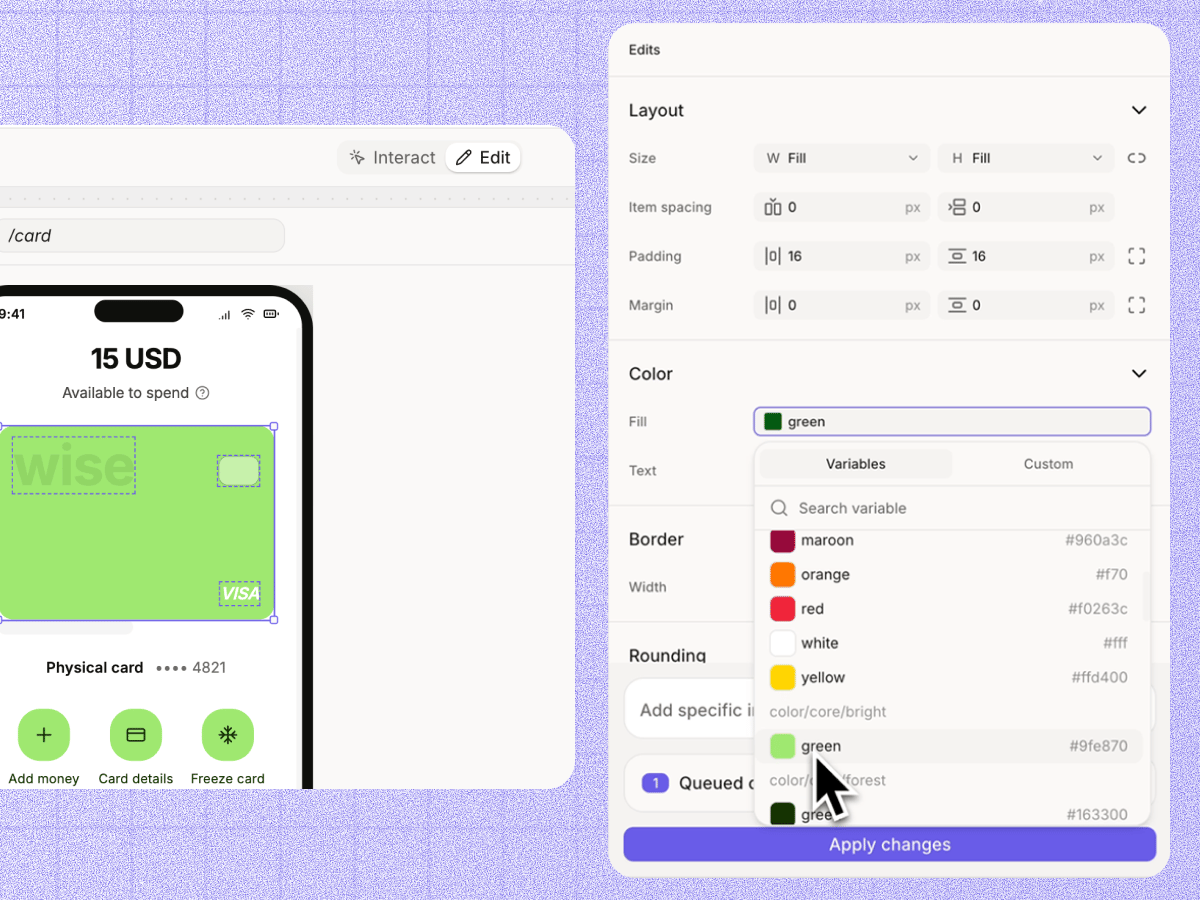
Select an element to inspect its properties and edit it directly.
Inspect an element
When you select an element, Figr shows the properties currently applied to it, including:- Font
- Colour
- Size
- Line height
- Spacing
- Position and alignment
Check design system usage
Direct Editing also shows how the selected element connects to your design system. You can see whether a value comes from an attached design system variable or uses a custom value. You can also check whether an element is tied to an existing component. If a value sits outside your design system, Figr shows a warning. You can still use the value if you want to.Edit properties directly
You can change the selected element without starting another prompt. For example, you can:- Edit text
- Change colour
- Adjust spacing
- Resize an element
- Move or align an element
- Switch to another value or variable
Variables and components stay connected
Direct Editing works with the design system already attached to your project. When you edit an element, Figr applies the change back to the source with your design system and code context. If the element already uses an attached variable or component, Figr keeps that connection unless you choose to override it.Design System
Learn how Figr uses your components, variables, tokens, and visual rules.
Canvas
Learn how screens, flows, reviews, and edits work together on the canvas.