

- Figma to Figr: select frames in Figma and reference them live in Figr’s chat.
- Figr to Figma: push a Figr prototype back into Figma as editable frames.
First-time setup
You do this once per account.1
Open Connectors in Figr
In the chat composer, open the Connectors menu and select Figma. This opens the Figr AI Figma Sync page on the Figma Community.
2
Load the plugin
Click Open in and load the plugin into any Figma file, then run it. A panel appears with a Connect to Figr button.
3
Authorize
Click Connect to Figr. A browser tab opens for a quick authorization. When you see “Plugin connected successfully,” return to Figma.
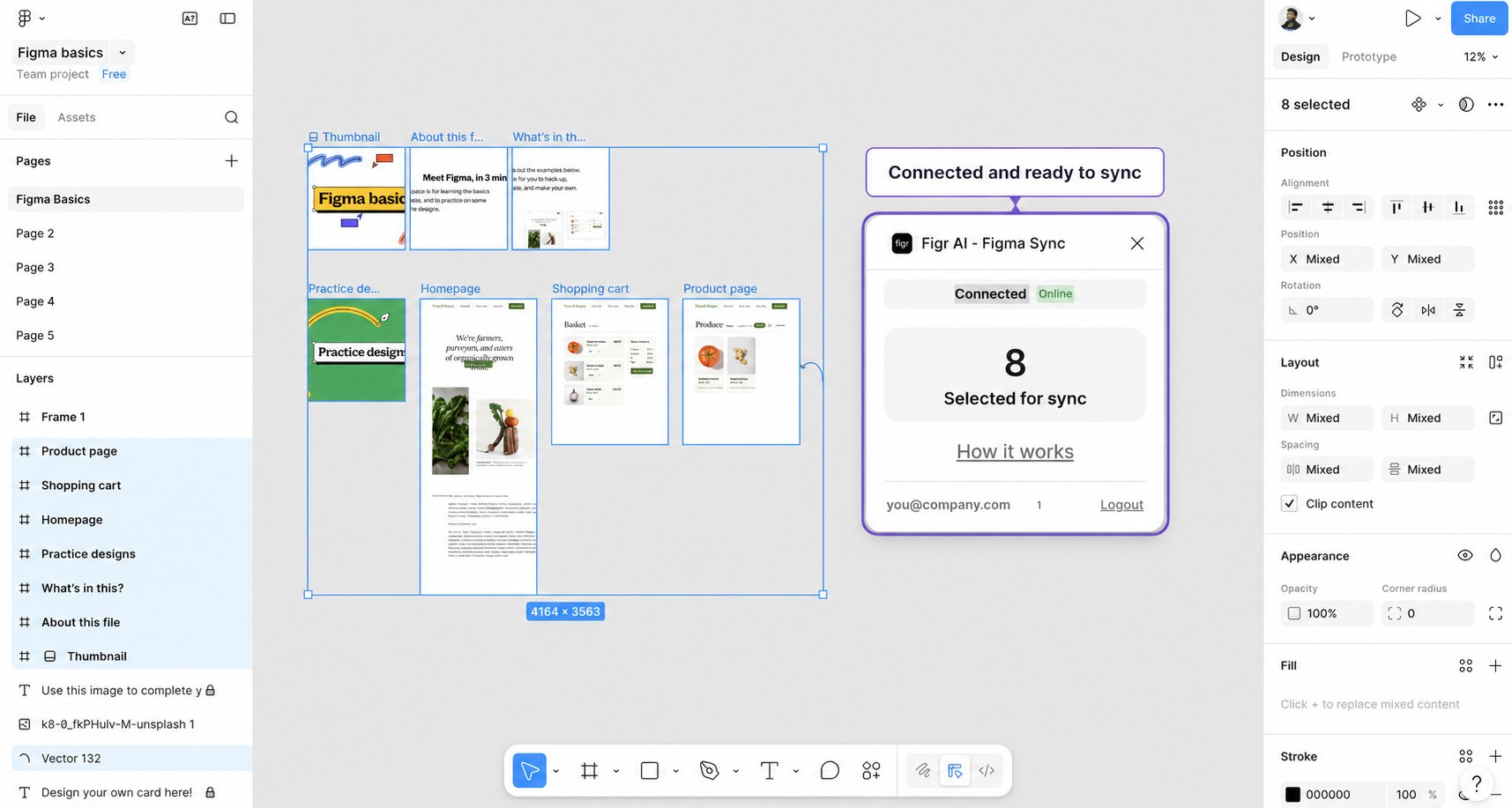

The connected Figr AI Figma Sync plugin panel in Figma.
What Figr can access
Figr can read the frames, tokens, and components you select, process that selection as design input, and paste frames you export from Figr back into Figma. Figr cannot edit or delete your existing Figma work, and cannot access files you have not opened the plugin in. You control the connection from the plugin and can log out anytime.Bring designs in
1
Select frames in Figma
Click one or more frames on the canvas. The plugin updates live to show how many are tracked, for example “12 Selected for sync.”
2
Toggle the Figma connector in Figr
In the composer, turn the Figma connector on. It references whatever you currently have selected in Figma, with no copying or links.
3
Write your prompt and submit
Figr imports the layout, captures a screenshot of each frame, and reads the real design values behind them.
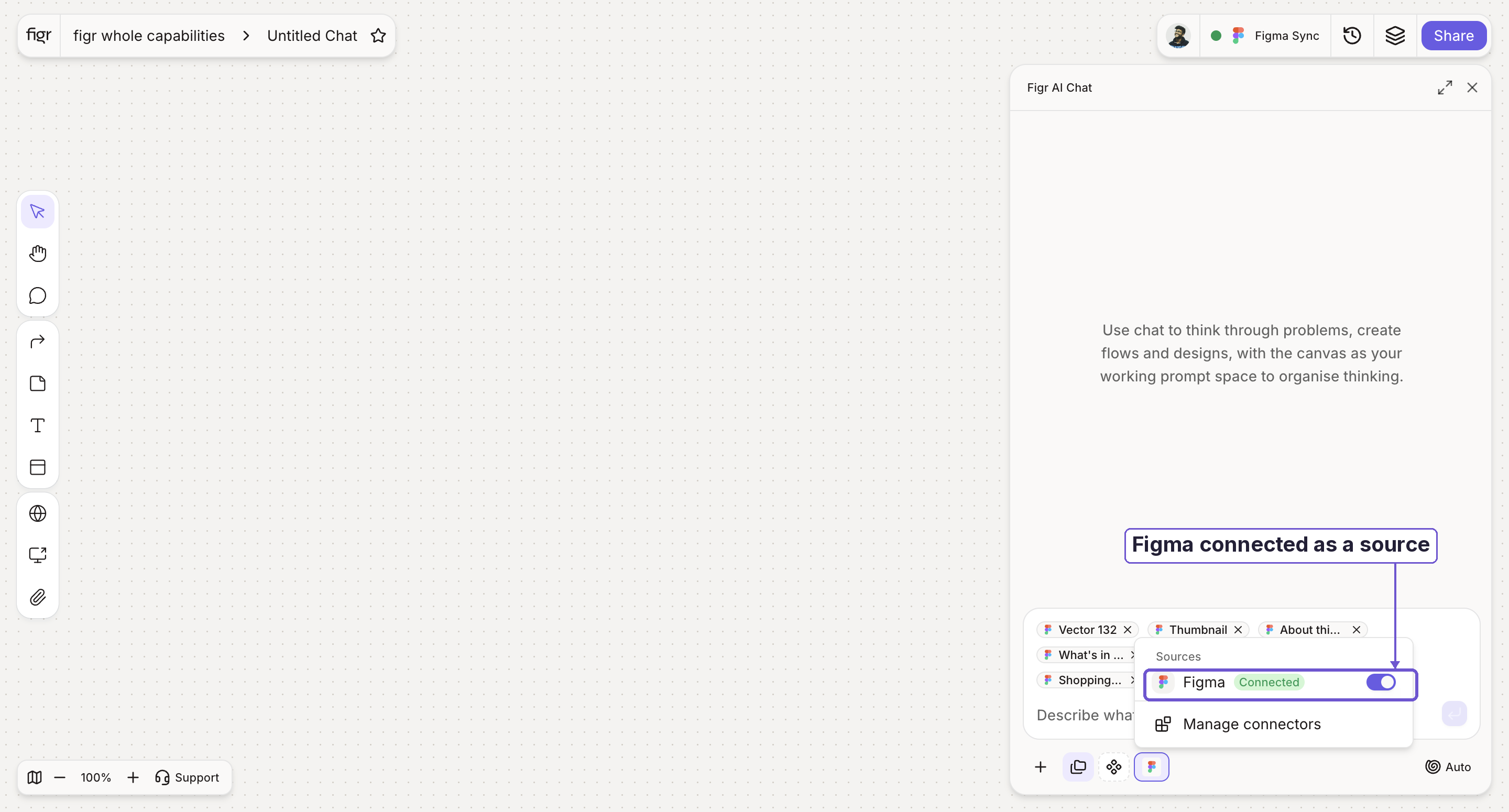

The Figma connector in the Figr composer references your live Figma selection.
- Frames and layout: structure, hierarchy, and arrangement
- Tokens and variables: exact colors, spacing, and type values
- Components and variants: your real building blocks, not lookalikes
Push designs back
1
Export from Figr
On a Figr prototype, open the export dropdown and choose Export to Figma. This copies the frame data to your clipboard.
2
Run the plugin in Figma
Open the Figr AI Figma Sync plugin in the file you want the frame in.
3
Paste
The frame materializes on your Figma canvas as editable layers, ready to refine.
Why Figma input beats a screenshot
When Figr analyzes an image, it estimates colors, guesses spacing, and approximates radius. Figma frames give it the real values instead.When to use which
Best practices
Example prompts:Manage your connection
Your status lives in the plugin window in Figma. Click Logout to revoke access immediately. To switch accounts, log out and reconnect with a different account. To reconnect, run the plugin and click Connect to Figr again anytime.Troubleshooting
Related
Context Pods
Attach synced frames so Figr reuses them across the project.
Export to Figma
More on sending finished designs back to your Figma workflow.
Item Actions
Where the export dropdown lives on a selected prototype.