

1. Setup Context Pods
Context Pods and walkthroughs teach Figr how your product works.Create context Pod
Start with a Context Pod for the product or feature area you want Figr to understand. Good examples:- “Cal.com booking flow”
- “Billing and plans”
- “Admin permissions”
- “Workspace onboarding”
- “Analytics dashboard” Keep it focused. One Context Pod should cover a single product area, workflow, or feature set, so Figr can understand and reuse it later.
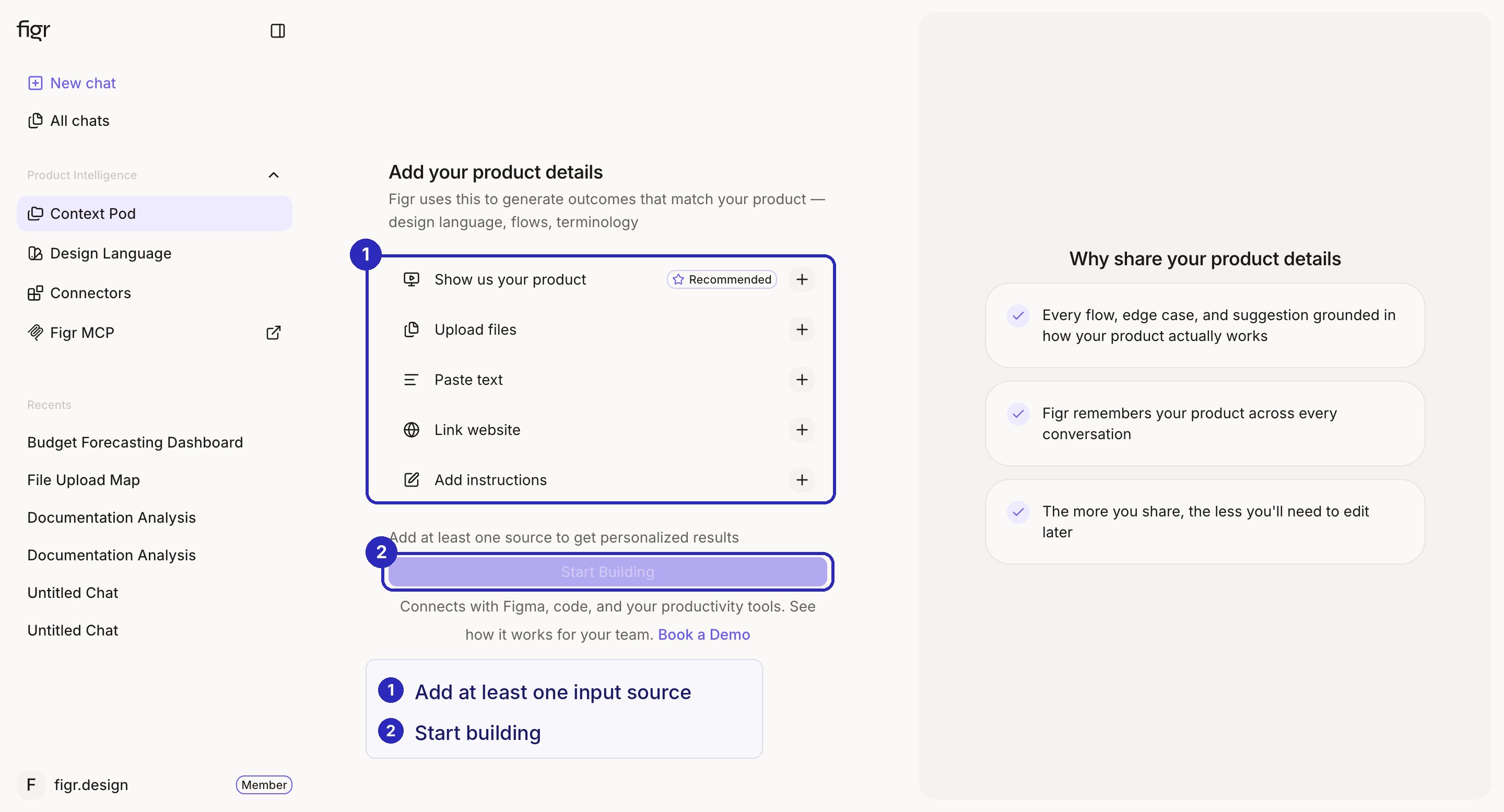

Add a walkthrough
Add a screen recording or product walkthrough to the Context Pod. Walk through the area like you are explaining it to a teammate: what it does, who uses it, what they are trying to complete, where the friction is, what should not change, and which states matter. A recording beats a screenshot. Figr follows the real sequence, clicks, movement, dropdowns, and transitions.2. Setup Design Language
This is where Figr learns how your product should look. Connect your Figma frames, add design tokens, upload CSS or JSON, or let Figr learn from your live product. The goal is for Figr to design inside your system, not approximate it. No design system yet? You can build one directly in Figr.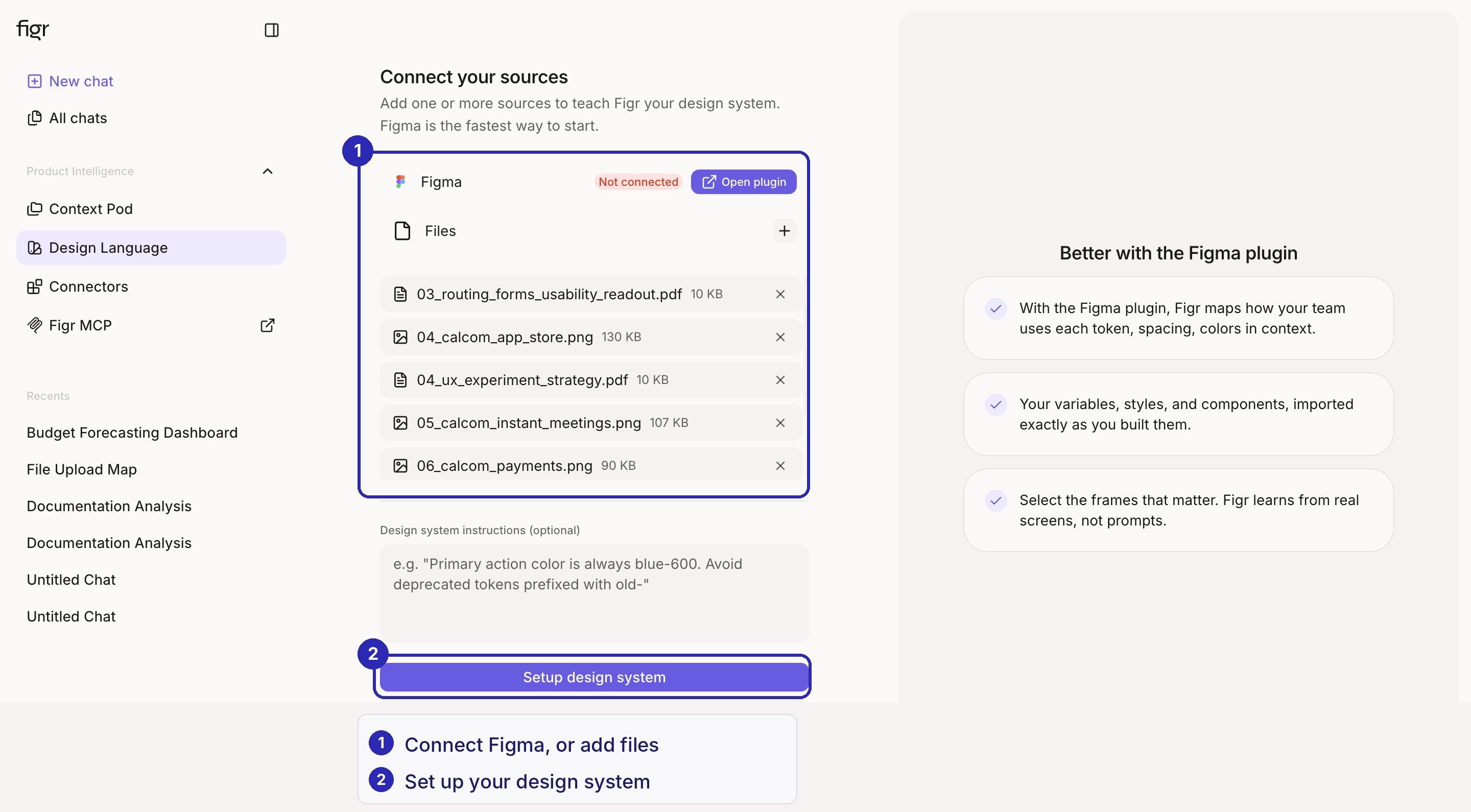

Start with lighter tasks
With context and design language in place, do not jump straight to a high-fidelity design. Start with something lighter first: a review, a flow, an edge-case map, or a PRD breakdown. This lets Figr reason through the problem before it generates screens. Good first prompts:- “Review this onboarding flow and identify where users may get stuck.”
- “Map the edge cases for this billing upgrade flow.”
- “Create a user flow from this product walkthrough.”
- “Turn this rough PRD into a flow and key states.”