

Annotations are notes that stay visible next to your work. Use them to explain why a design looks the way it does, call out behaviour that isn’t obvious from a static screen, or leave notes for developers before handoff. Unlike comments, annotations aren’t conversations and don’t get resolved.
1
Add an annotation
Choose the Sticky Note tool in the canvas toolbar and click where you want the note to appear.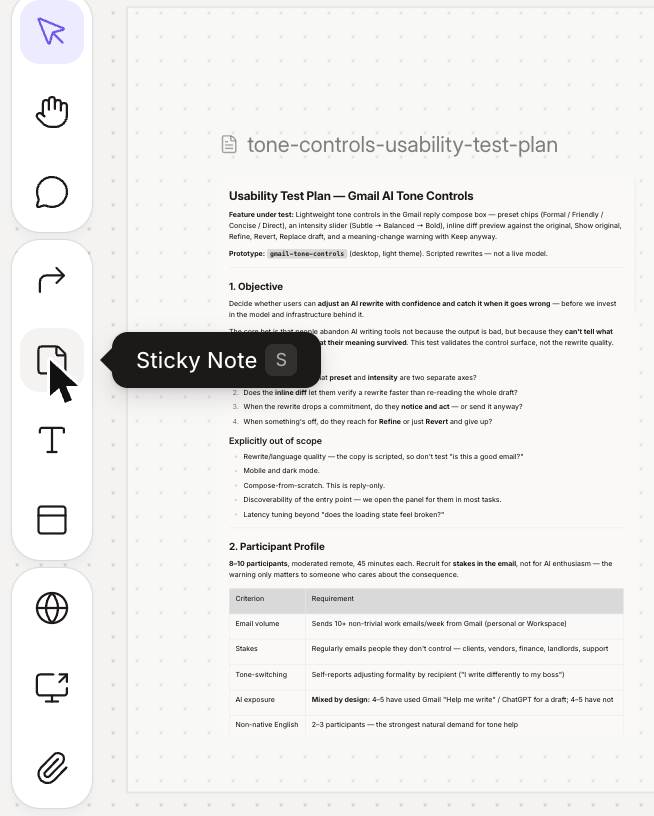
2
Write the note
Keep it short and specific. For example: “Button stays disabled until all required fields are filled.”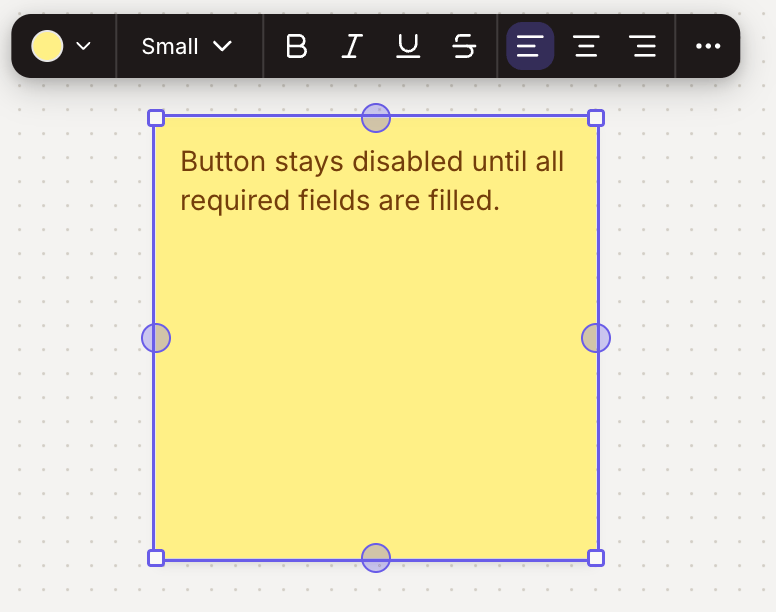
Figr reads annotations on its next turn, so a note on the canvas also guides the next design.
3
Point it at what it describes
Place the annotation beside the screen or element it refers to, or connect it with a line so it’s clear what it’s about.
4
Update it as the design changes
Edit or delete annotations when the design moves on, so they never describe an old version.