Always on or when relevant
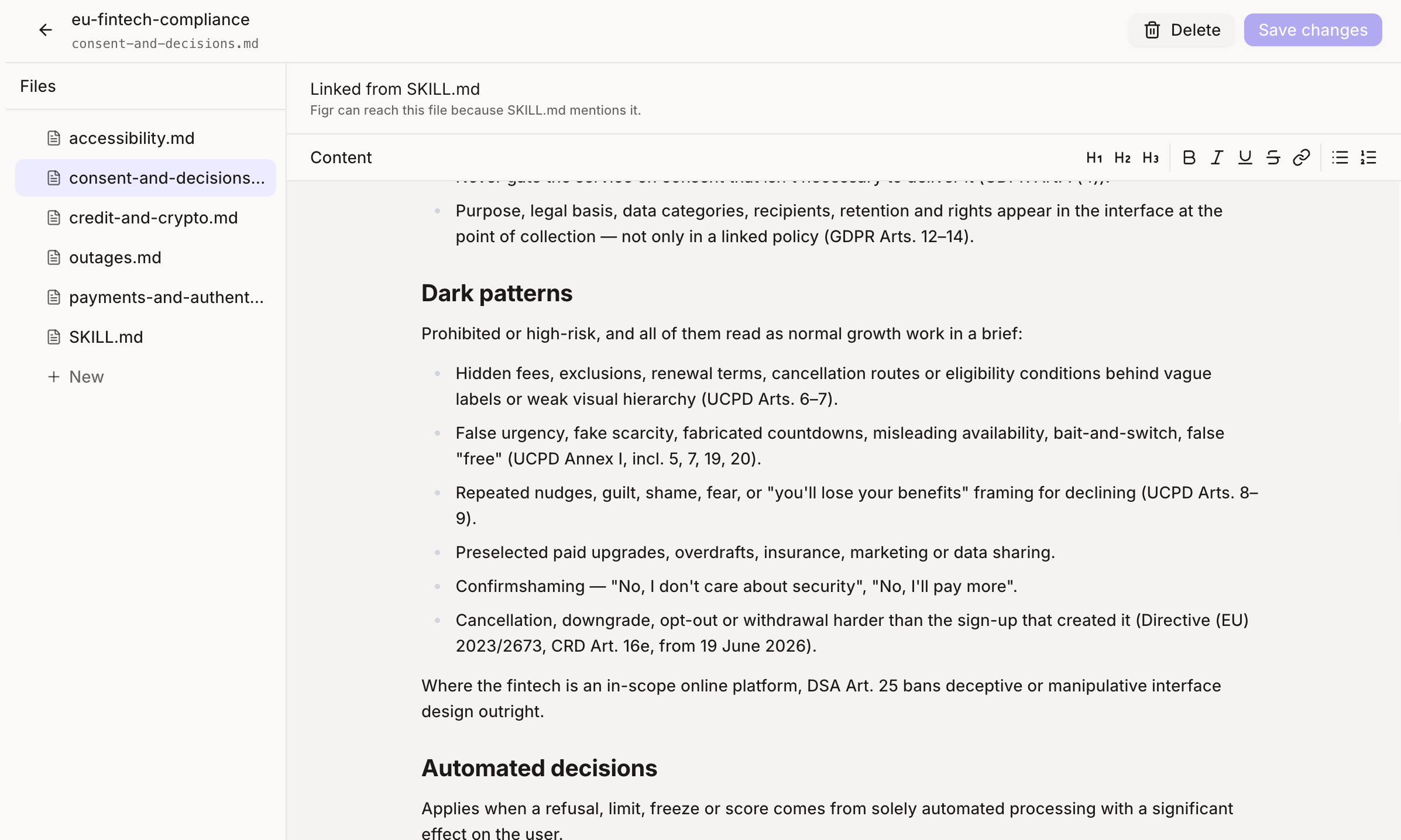
Each skill has a mode that decides when Figr uses it.- Always on: Figr applies the skill to every request. Use it for rules that never bend.
- “All text must meet WCAG AA contrast.”
- “Never pre-select consent or marketing checkboxes.”
- “Show fees before the confirm button, never after.”
- When relevant: Figr applies the skill only when the request matches it. Use it for rules that belong to one area of your product.
- “When designing checkout, show the order total on every step.”
- “When designing onboarding, keep it to three steps or fewer.”
- “When designing for mobile, use bottom sheets instead of modals.”
Create a skill
1
Open Skills and create a new skill
Give it a clear name, like Payments compliance, and a short description of what it covers.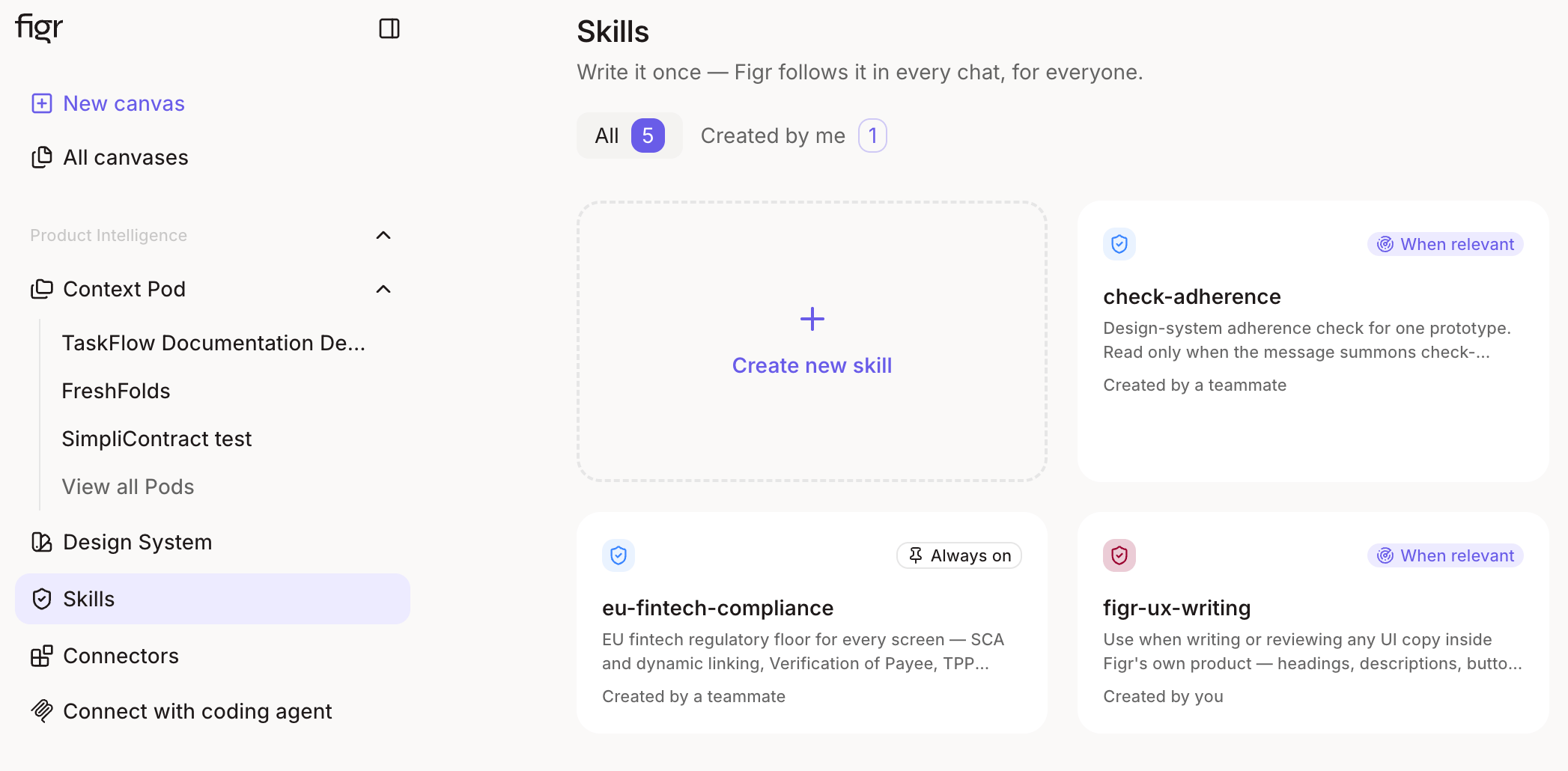
2
Write the rules
List each rule as a short, specific statement Figr can check a design against.
3
Choose the mode
Pick Always on or When relevant.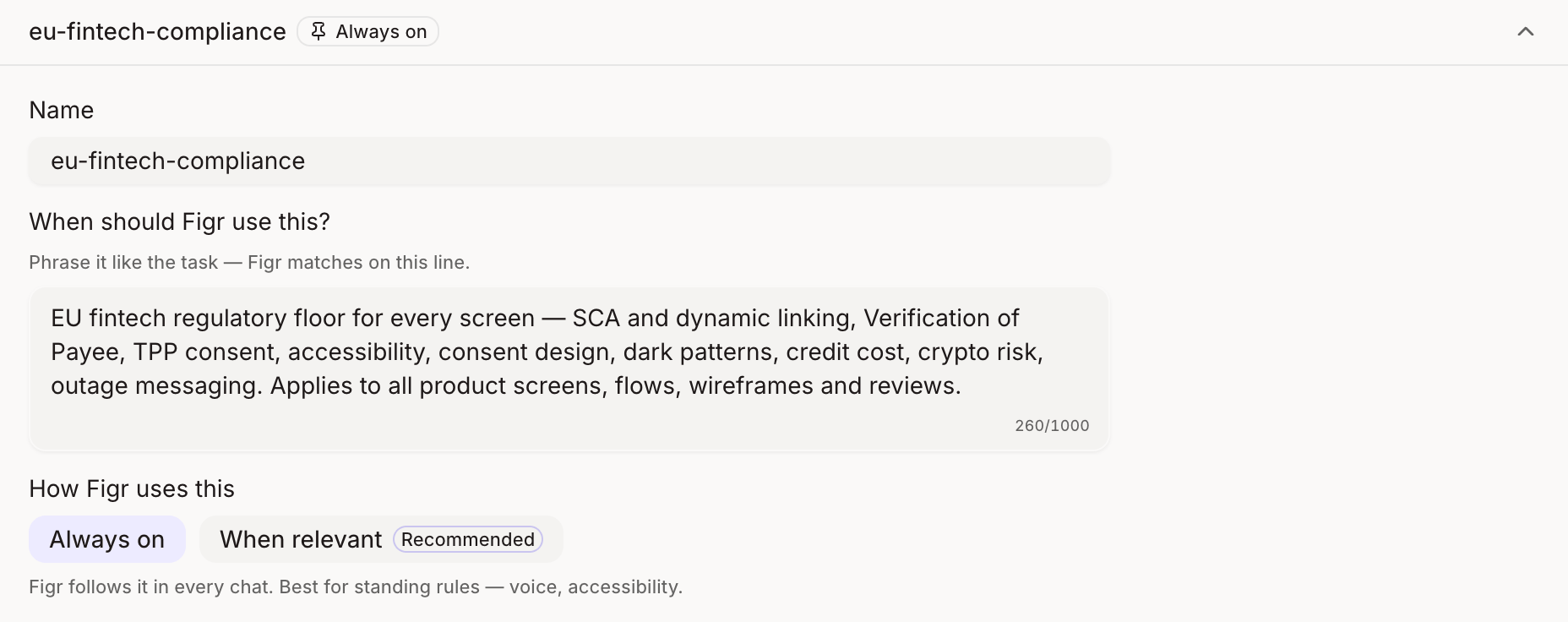
4
Turn it on for your organisation
Skills are enabled automatically org-wide, every team member can use or apply the skills you’ve created to their respective projects.
Example: anti-dark-pattern rules for payments
A fintech team wanted every payment flow to be clear and honest, no matter who designed it. They added these rules as an Always on skill, enabled for the whole organisation:- Payment details, fees and exchange rates always have strong visual hierarchy. They are never hidden behind a toggle, an accordion or small text.
- Every payment has an explicit confirmation step that shows the final amount.
- Toggles and defaults never pre-select the option that costs the user more.