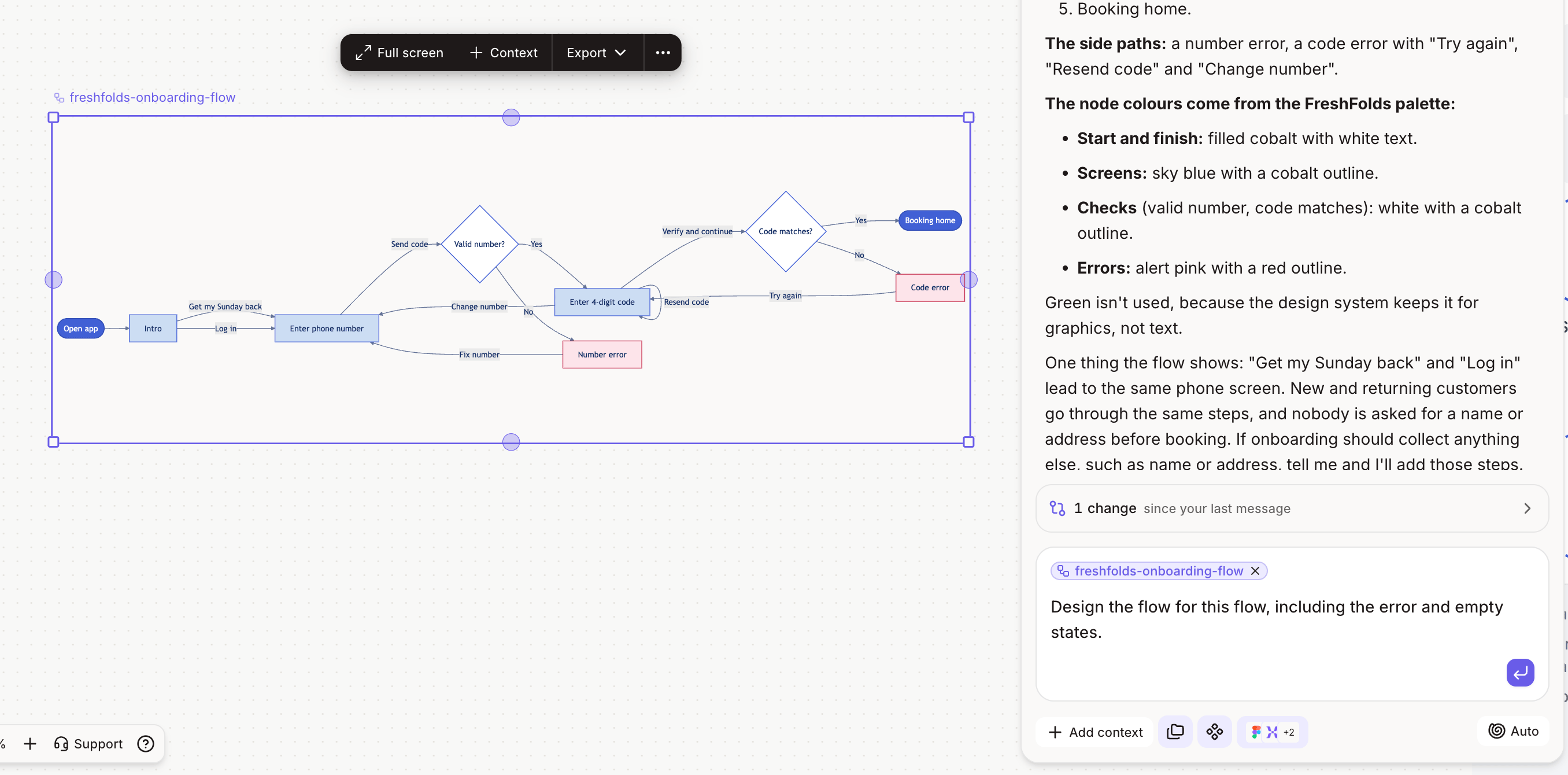
A user flow shows how someone moves through your product to reach a goal: each step, each decision, and where they can drop off. Mapping it first helps you agree on the journey with your team before anyone opens a design file.
1
Describe the journey
Tell Figr who the user is, where they start, and what they’re trying to do. For example: “Map the flow for a new user inviting a teammate, starting from the dashboard.”
2
Attach your Context Pod
Select your pod in the chat so the flow follows how your product works today, not a generic pattern.
3
Review the flow on the canvas
Figr draws the flow as a diagram with steps, decisions and branches. Check the happy path first, then the branches.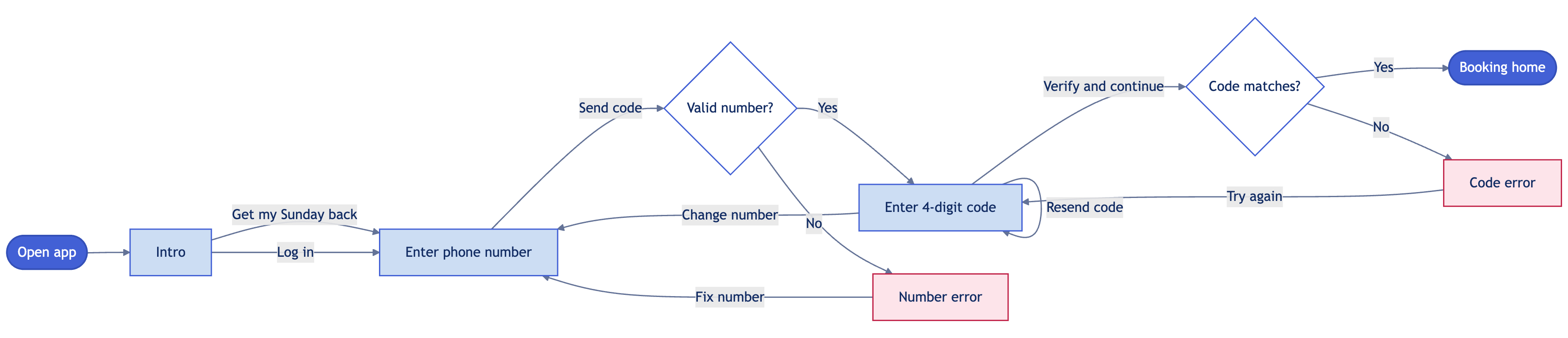
4
Refine it
Ask Figr to add a missing step, split a branch, or cover a different entry point. For example: “Add what happens when the invite email bounces.”To fix one point in the flow, use select and edit: select the node on the canvas, then tell Figr what to change there. For example: “Ask for the teammate’s role at this step.” Figr focuses the change on that node instead of redrawing the whole flow.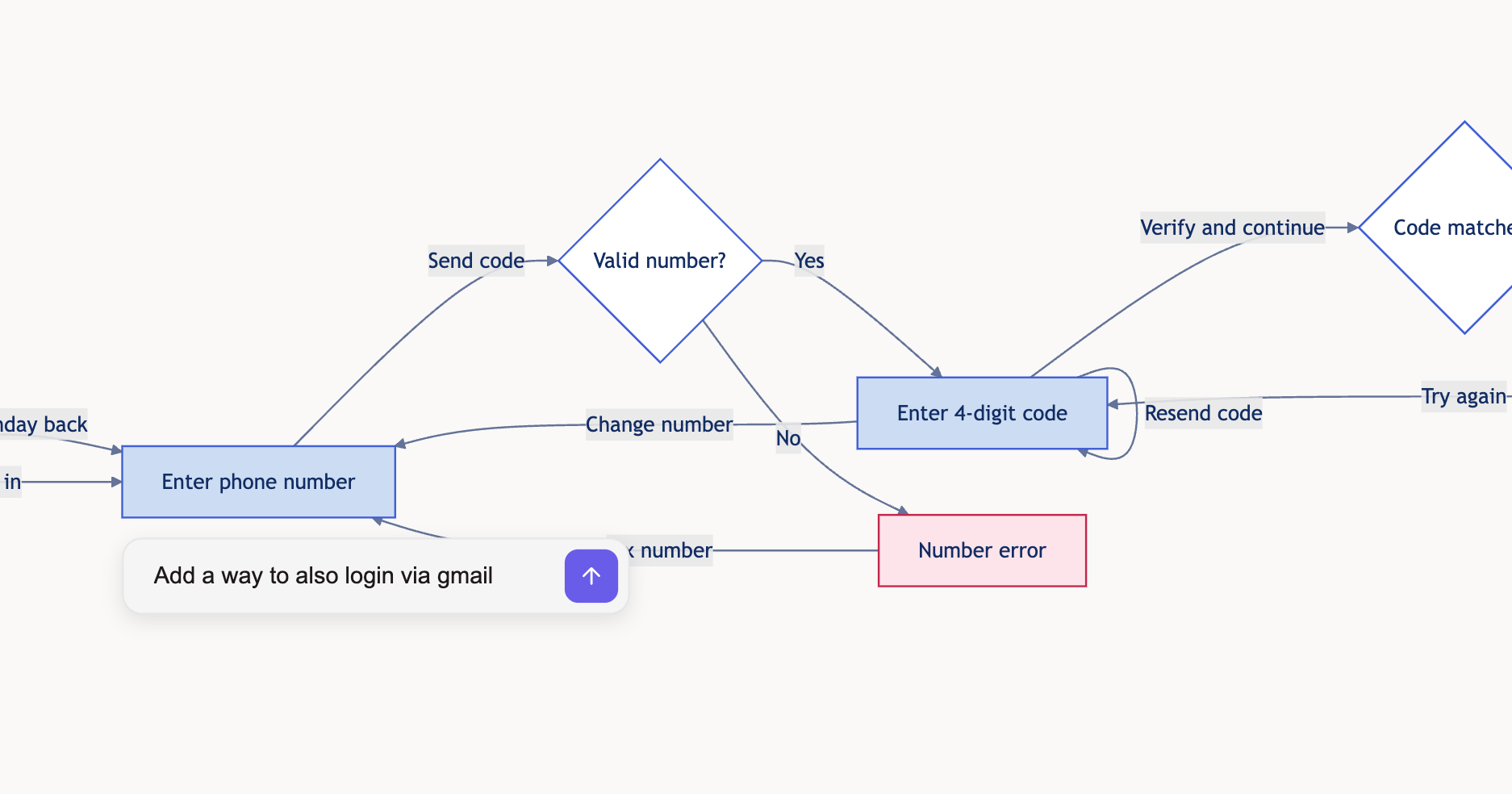
5
Ask Figr to design the screens
For example: “Design the screens for this flow, including the error states.” Figr places the screens on the canvas in the same order as the flow.